
Port forwarding comes down to one rule in your router that says "anything arriving on this port goes to that device." You give your PC or console a local IP that won't change, add the rule with the game's port and protocol, let the server through Windows Firewall, and then have someone outside your house try to join.
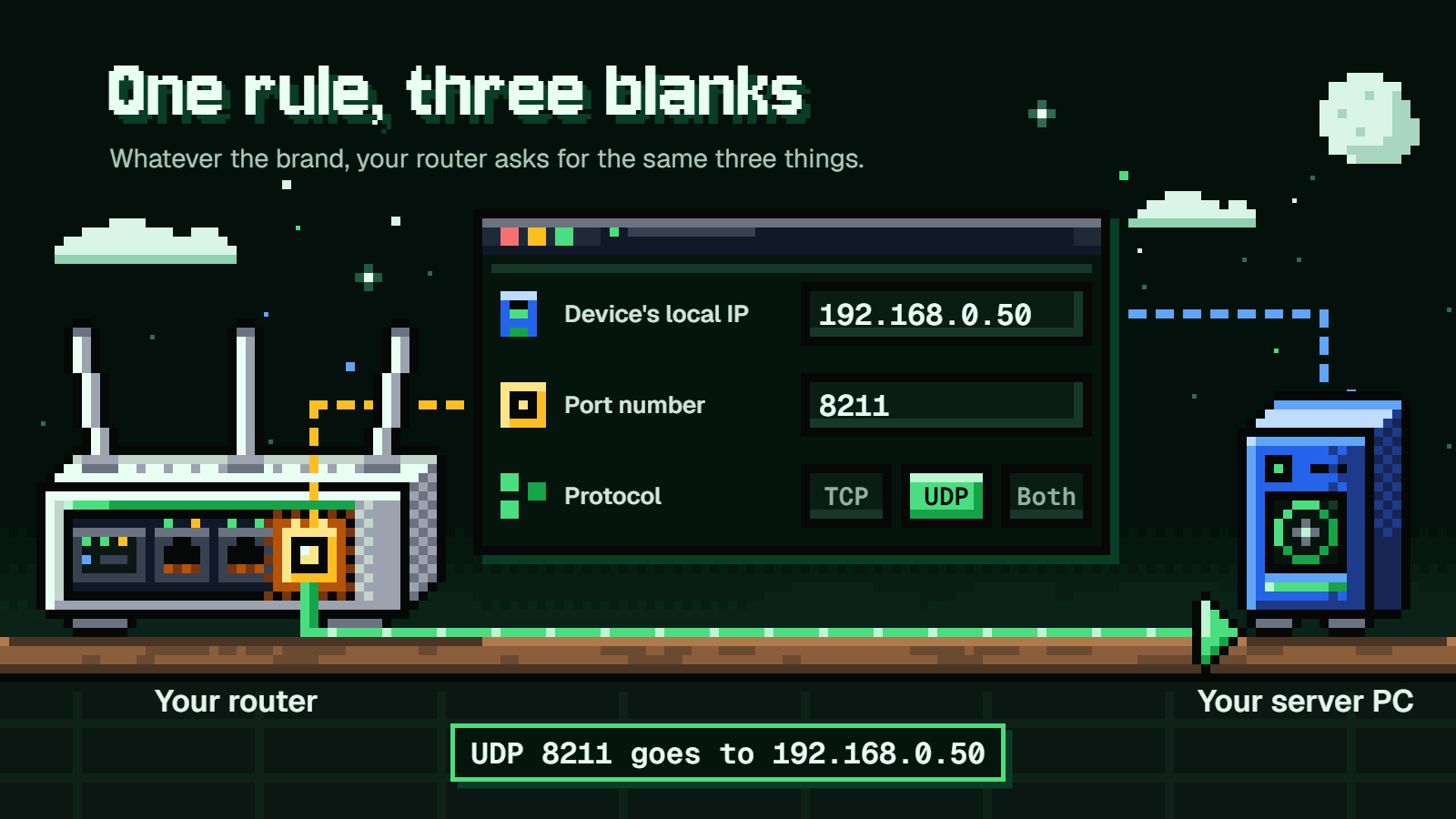
What a port forward is: one rule with three blanks
Whatever brand of router you're logged in to, it's asking for the same three things:
- The device's local IP address, meaning the PC or console the traffic should land on.
- The port number the game or server listens on.
- The protocol: TCP, UDP or both.
You need a rule because your router's firewall blocks every connection attempt coming in from the internet by default. On top of that, all your devices share one public IP address, so when a friend's game knocks on that address, the router has no idea which device should answer.
Here's a made-up setup to carry through the rest of the steps. You're running a Palworld server on a PC at 192.168.0.50, your public address is 203.0.113.25, and Palworld uses UDP 8211. Your rule says "UDP 8211 goes to 192.168.0.50," and your friends join at 203.0.113.25:8211.
Do you need to port forward at all?
Maybe not, and it's worth a minute to check.
Anyone on the same home network as the server doesn't need a rule. They join with the server PC's local IP, so a roommate would type 192.168.0.50 and be in. Forwarding only matters for players elsewhere, who use your public IP.
A Valheim server started with -crossplay sends its data through a relay server and needs no port forwarding. With crossplay on, though, nobody joins by local IP, not even from the same house: players use the public IP and port, a join code or the server list.
An Xbox asks the router for UDP 3074 by itself through UPnP, so as long as your router has UPnP turned on, you may never have to touch the forwarding page. If you do end up adding rules for a console, they go in the router, not on the console. Xbox's own advice is not to combine port forwarding, UPnP and DMZ, so pick one method.
Give your PC or console a fixed local IP
Your router hands out local addresses automatically, and the same device can get a different one later. If your server PC is 192.168.0.50 today and 192.168.0.53 after a restart next month, the rule still points at .50 and your friends get nothing. The fix is a reservation, which tells the router to give that device the same address every time.
First, find the address the PC has now. On Windows 10 or 11, go to Start > Settings > Network & internet, then open Wi-Fi and your network, or Ethernet. It's next to IPv4 address. Or click Start, type cmd, press Enter and run:
ipconfig
That lists the IPv4 address, subnet mask and default gateway for each adapter. A reservation also needs the device's MAC address, which ipconfig /all shows, though some routers let you pick the device from a list instead.
Then reserve it:
- TP-Link:
Advanced>Network>DHCP Server>Address Reservation(on some models,Network>DHCP Server>Address Reservation). ClickAdd, enter the MAC address and IP, turn the entry'sStatuson, thenReboot. If the router is on its default192.168.0.1, pick something between192.168.0.2and192.168.0.254. - NETGEAR:
ADVANCED>Setup>LAN Setup, thenAddin theAddress Reservationsection. Type the IP and the MAC address (you can copy it from theAttached Devicespage) and clickApply. The PC picks up the address the next time it contacts the router, so reboot it. - ASUS:
Advanced Settings>LAN>DHCP Server. SetEnable Manual AssignmenttoYes, pick the device from the list, enter an IP inside the DHCP pool, click+, thenApply. In the ASUS Router app it'sSettings>LAN>IP Binding. - Linksys:
Connectivity>Local Networktab >DHCP ReservationsunderDHCP Server. Select the device, clickAdd DHCP Reservation, thenSave. The IP has to be inside the DHCP range.
For consoles, the router reservation is still the better route. If your router doesn't offer one, an Xbox can be set by hand under Profile & system > Settings > General > Network settings > Advanced settings > IP settings > Manual. On PS5 it's Settings > Network > Settings > Set Up Internet Connection, then Advanced Settings > IP address.
Find the port and protocol for your game or console
These are the defaults from each game's or console's own maker.
| Game or console | Port | Protocol | Notes |
|---|---|---|---|
| Minecraft: Java Edition | 25565 | TCP | Set by server-port=25565 in server.properties. |
| Valheim (Steam backend) | 2456-2457 | UDP | The server uses the port set with -port (default -port 2456) plus the next one. |
| Palworld | 8211 | UDP | Changed with the start argument -port=8211 (official server guide, version 1.0.4). |
| Project Zomboid (Build 42) | 16261 and 16262 | UDP | Two separate rules. 16261 is the game port players type, 16262 is for direct connection. |
| Xbox network | 88 (UDP), 3074 (UDP and TCP), 53 (UDP and TCP), 80 (TCP), 500 (UDP), 3544 (UDP), 4500 (UDP) | Per port | 9002 (UDP) only if remote play won't connect on Strict NAT. Some games need extra ports, listed by their developer. |
| PlayStation | TCP 80, 443, 3478, 3479, 3480; UDP 3478, 3479, 49152-65535 | TCP and UDP | Remote Play uses UDP 8572. |
Two things trip people up when they change a port. In Palworld, PublicPort doesn't change the port the server listens on. Only -port= does that, so the rule has to match the launch argument. In Minecraft, if you move off 25565, players have to add the new port after your address, like 203.0.113.25:25570.
For Valheim, if you start the server with a different -port, forward that number and the one after it.
How to port forward on your router
Every brand asks for an external port and an internal port. External is the one your friends' games hit from the internet, and internal is the one the server listens on at your PC. For a game server they're almost always the same number, so in the running example both are 8211.
A port can go to only one device. And if you see "port triggering" next to the forwarding option, leave it alone. It's a different feature, and it isn't the one a server waiting for incoming connections needs.
TP-Link
Log in at tplinkwifi.net or 192.168.0.1. TP-Link calls the feature Virtual Servers or Port Forwarding depending on the model, and there are three layouts:
- TL-WR840N, TL-WR940N, Archer C20, C50:
Forwarding>Virtual Servers>Add New. Fields areService Port,Internal Port,IP Address,ProtocolandStatus(set toEnabled). - Archer A9, C7, AX10, AX6000:
Advanced>NAT Forwarding>Virtual Servers>Add. Fields areService Type,External Port,Internal Port,Internal IPandProtocol. - Archer A8, AX55, AX90, AX11000:
Advanced>NAT Forwarding>Port Forwarding>Add. Fields areService Name,Device IP Address(pick it fromView Connected Devices),External Port,Internal PortandProtocol.
Once you're on the right page:
- Enter the port in the external (or service) port field, for example
8211. - Enter the same number as the internal port. For a range written like
2456-2457, leaveInternal Portempty. - Enter the device's reserved IP, for example
192.168.0.50. - Choose the protocol. If you're not sure, choose
ALL. - Make sure the entry is enabled and click
Save.
TP-Link's own port forwarding setup guide has screenshots of each layout if yours looks different.
NETGEAR
- Go to
www.routerlogin.netand log in. The user name isadmin. - Open
ADVANCED>Advanced Setup>Port Forwarding/Port Triggeringand keepPort Forwardingselected. - Click
Add Custom Service. - Type a
Service Nameyou'll recognize later, like "Palworld". - Set
Service Typeto the protocol. If you're unsure, pickTCP/UDP. - Fill in
External Starting PortandExternal Ending Port. For a single port, both get the same number. - Leave
Use the same port range for Internal portticked. - Enter the PC's address in
Internal IP addressand clickApply.
NETGEAR walks through the same screen in its custom port forwarding service article.
ASUS
- Log in at
www.asusrouter.com. - Go to
WAN>Virtual Server/Port Forwarding. - Switch
Enable Port Forwardingto ON. It's off by default, and it's easy to add a rule and never notice the master switch. - Click
Add profile. - Fill in
External Port. A range is written with a colon, like300:500, and separate ports are written with commas, like566, 789. Valheim's default pair would be2456:2457. - Leave
Internal PortandSource IPblank unless you have a reason to change them. - Enter the PC's address in
Internal IP Address, pick the protocol the game needs and clickOK.
There's more detail on the range syntax in the ASUS Virtual Server / Port Forwarding guide.
Linksys
- Log in at
myrouter.localor192.168.1.1. - Go to
Security>Apps and Gaming. - For one port, open
Single Port Forwardingand clickAdd a new Single Port Forwarding. For consecutive ports, usePort Range Forwardinginstead, which hasStart PortandEnd Portfields. - Fill in
Application name,External PortandInternal Port. - Set
Protocol. Linksys recommends leaving it onBoth. - Enter the last part of the PC's address in
Device IP#. - Tick
Enabled, then clickSave,ApplyandOk.
In the Linksys app, it's the menu > Advanced Settings > Port Settings > Single Port Forwarding > Add a rule. The web version is covered in the Linksys Smart WiFi port forwarding article.
Let the server through Windows Firewall
The router now passes traffic to your PC, but Windows blocks inbound connections by default too, so the server needs its own allow rule.
The first time you launch a server app, Windows shows a prompt asking whether to allow it. Say yes. Valheim's guide goes further and says to tick all the checkboxes in that pop-up.
If you clicked No or closed the prompt, that's very likely your problem. Windows responds by creating block rules, typically one for TCP and one for UDP, and block rules beat allow rules. The prompt won't come back until those are deleted. Type wf.msc into Start, open Inbound Rules, find the entries for your server app and remove the blocking ones.
From there you have two ways to let the server in.
Allow the app (the better choice). Open Windows Security > Firewall & network protection > Allow an app through firewall, click Change settings, and tick the server. If it isn't listed, use Allow another app and enter its path. Microsoft calls this the less risky option, because an allowed app opens its ports only when needed, while an opened port stays open until you close it.
Open a port. If you need a port rule instead:
- Type
wf.mscinto Start, or go toFirewall & network protection>Advanced settings. - Click
Inbound Rules, thenNew Rule...underActions. - On
Rule Type, choosePort. - On
Protocol and Ports, pick TCP or UDP and type the local port, for example UDP8211. The wizard makes you choose one protocol, so a game that needs both gets two rules. - On
Action, chooseAllow the connection. - On
Profile, tick the network types the rule should apply to. - Give it a name you'll recognize and finish.
That Profile page hides a catch. A rule only works on the network types you ticked, and Windows 11 sets a network to Public when you first connect to it. So a rule limited to Private does nothing if your home network is still marked Public. Check under Settings > Network & internet > your network > Network profile type.
Whichever route you take, don't turn the firewall off to "see if it helps." Microsoft is clear that doing so leaves the PC more vulnerable, and allowing the app gets you the same result. The full list of wizard pages is in Microsoft's documentation on configuring Windows Firewall rules.
Test the port from outside your network
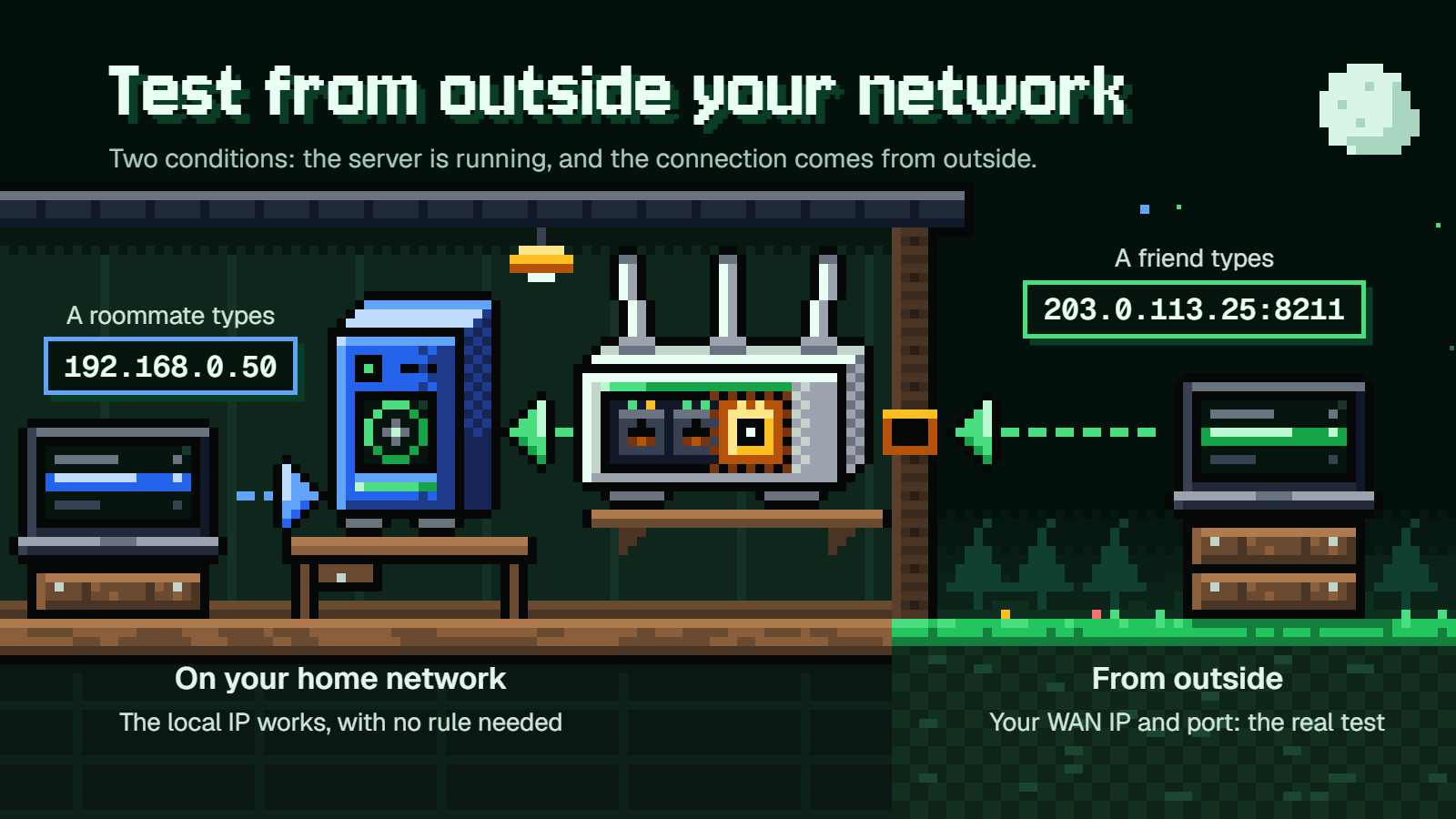
Two conditions make a test worth anything. The server has to be running, because a port with nothing listening behind it looks closed even when the rule is perfect. And the connection has to come from outside your home network, from a device that's on the internet but not on your own LAN.
The simplest real test is a friend. Have them connect to your WAN IP and port, in the running example 203.0.113.25:8211. Your WAN IP is on the router's status page.
If they can't get in, work through TP-Link's order of checks:
- Can a device on your own network reach the server at its local IP? If not, the problem is the server, not the router.
- Does the rule have the right internal IP, port and protocol? A reservation you set after the PC already had a different address is a classic cause.
- Is Windows Firewall blocking it? This and the next item are the two most common causes.
- Is the router's WAN IP a real public address? More on that below.
- Are the device's own IP settings correct?
Consoles have a built-in check. On Xbox, go to Profile & system > Settings > General > Network settings > Test NAT type, and you're aiming for Open. On PS5, it's Settings > Network > Connection Status > Test Internet Connection.
Project Zomboid gives you a helpful hint for free: it warns players when the server's port 16262 is closed, so if friends see that, your second rule is the one to look at.
When port forwarding can't work: double NAT and CG-NAT
A forward only works from the internet if your router's WAN IP is a public address. Here's how to check: note the WAN or Internet IP on the router's status page (on TP-Link it's WAN IP Address under Advanced > Status or Advanced > Network > Status), then look up your public IP on an IP-lookup website. If they match, you're fine. If they don't, something upstream is doing its own NAT and your rule never sees the traffic.
The WAN IP itself tells you which situation you're in:
- A private address (
10.0.0.0to10.255.255.255,172.16.0.0to172.31.255.255, or192.168.0.0to192.168.255.255) usually means double NAT. Your provider's gateway, the modem and router in one box, is doing NAT, and so is your own router behind it. - An address from
100.64.0.0to100.127.255.255means carrier-grade NAT. It looks public, but it isn't. TP-Link says most 3G/4G/5G providers put customers on a private or CG-NAT address.
For double NAT, the first choice is putting the provider's gateway in bridge mode so your router gets the public address. If the gateway can't do that, run your own router in access point (AP) mode. It stops forwarding ports in that mode (NETGEAR greys the page out), so the rule goes on the gateway instead. If the first box is a separate router and not the provider's gateway, NETGEAR's first choice is to remove it. TP-Link also offers a workaround: open the same port on the upstream device too, pointing at your router.
For CG-NAT, nothing in your house will fix it. Ask your provider for a public IP address, or ask them to forward the port on their side. Xbox's blunt take is that if they can't give you one, you'll have to change ISPs.
Is port forwarding safe?
For a single game port pointing at a server with a password on it, the risk is manageable. It isn't zero, though, and the companies that make this hardware are upfront about why.
Linksys describes a forwarded port as "a point of entry." Automated bots can discover open ports, and devices with weak passwords or outdated software are especially vulnerable. Microsoft says opening a port "might create opportunities for hackers or malware." On the other side, TP-Link points out that forwarding keeps the rest of your network safe because other services stay invisible from the internet. You're opening one door you chose, not the whole house.
That's also why forwarding is the safest of the three ways to let traffic in. NETGEAR ranks them like this: port forwarding opens only the specific ports needed. UPnP is "not as secure as port forwarding," since a worm or malware can use it to open ports without asking, but it keeps more firewall protection than a DMZ. A DMZ "removes all of your router's firewall protection for a device." ASUS says of enabling DMZ: "We highly suggest not to do so." If you were tempted to throw your PC in the DMZ because the rule wasn't working, go back to the checks above instead.
The habits that matter:
- Lock the server. Valheim has
-password, Palworld hasServerPassword, Project Zomboid hasPassword=(plusOpen=falsefor a whitelist), and Minecraft has the/whitelistcommand. An open port leading to a server that only lets your friends in is a much less interesting target. - Forward only what the game needs. One or two ports, not a huge range "to be safe."
- Keep router firmware updated. TP-Link and ASUS both note that new firmware carries fixes for known security holes. Keep the server software current too.
- Delete the rule when the server is retired. Linksys says a forward should never be "left open after it is needed." On NETGEAR, select the service on the
Port Forwarding/Port Triggeringpage and clickDelete Service. In the Linksys app, the rule's slider turns it off. If you made a Windows port rule, select it inInbound Rulesand chooseDisable Rule.
FAQ
Why did my port forward stop working after a few weeks?
Usually one of two addresses changed. If you skipped the reservation, the server PC may have picked up a new local IP, so the rule now points at nothing. Or your provider gave your router a new WAN IP, and your friends are still typing the old one. Check both before you touch the rule itself.
Can two devices use the same port?
Not through one rule. A port can be forwarded to only one device. If two PCs on your network each need the same port, TP-Link's approach is two rules with different external ports, each pointing at a different device. For a second Xbox, there's Alternate port selection under Advanced settings in the console's network settings.
Will the address my friends use change?
It can. Your provider assigns the WAN IP dynamically, so it may be different after a router restart or just over time. If friends suddenly can't connect and nothing else changed, check the router's status page and send them the new address.
Should I pick TCP, UDP or both if the game doesn't say?
In the router, pick the combined option: ALL on TP-Link, TCP/UDP on NETGEAR, Both on Linksys. If the game does name a protocol, like UDP for Palworld and Valheim or TCP for Minecraft: Java Edition, use only that one. In Windows Firewall a port rule has to be either TCP or UDP, so either make two rules or allow the app instead.