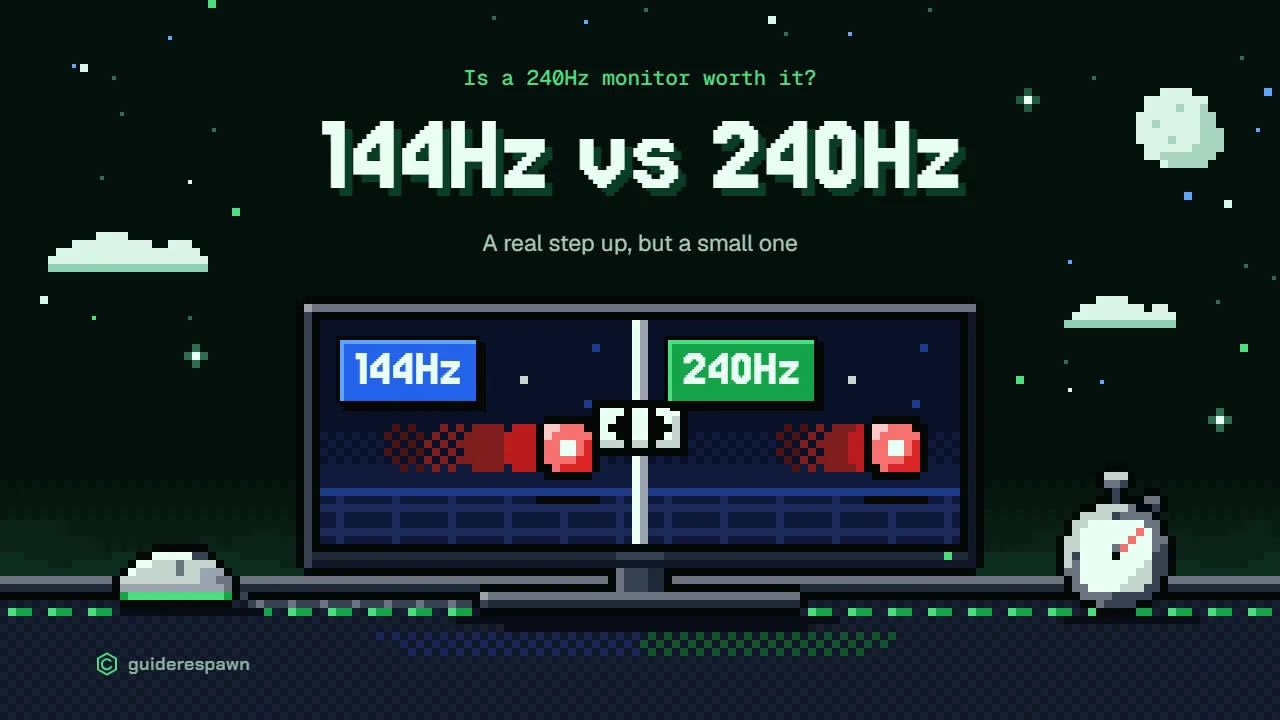
A 240Hz monitor is a real step up from 144Hz, but a small one. It pays off if you play fast competitive shooters like CS2, Valorant, Fortnite or Apex Legends on a PC that can hold a frame rate close to 240 fps in those games. If that's not you, 144Hz is the better buy, and the money you save is better spent on a higher resolution or a nicer panel.
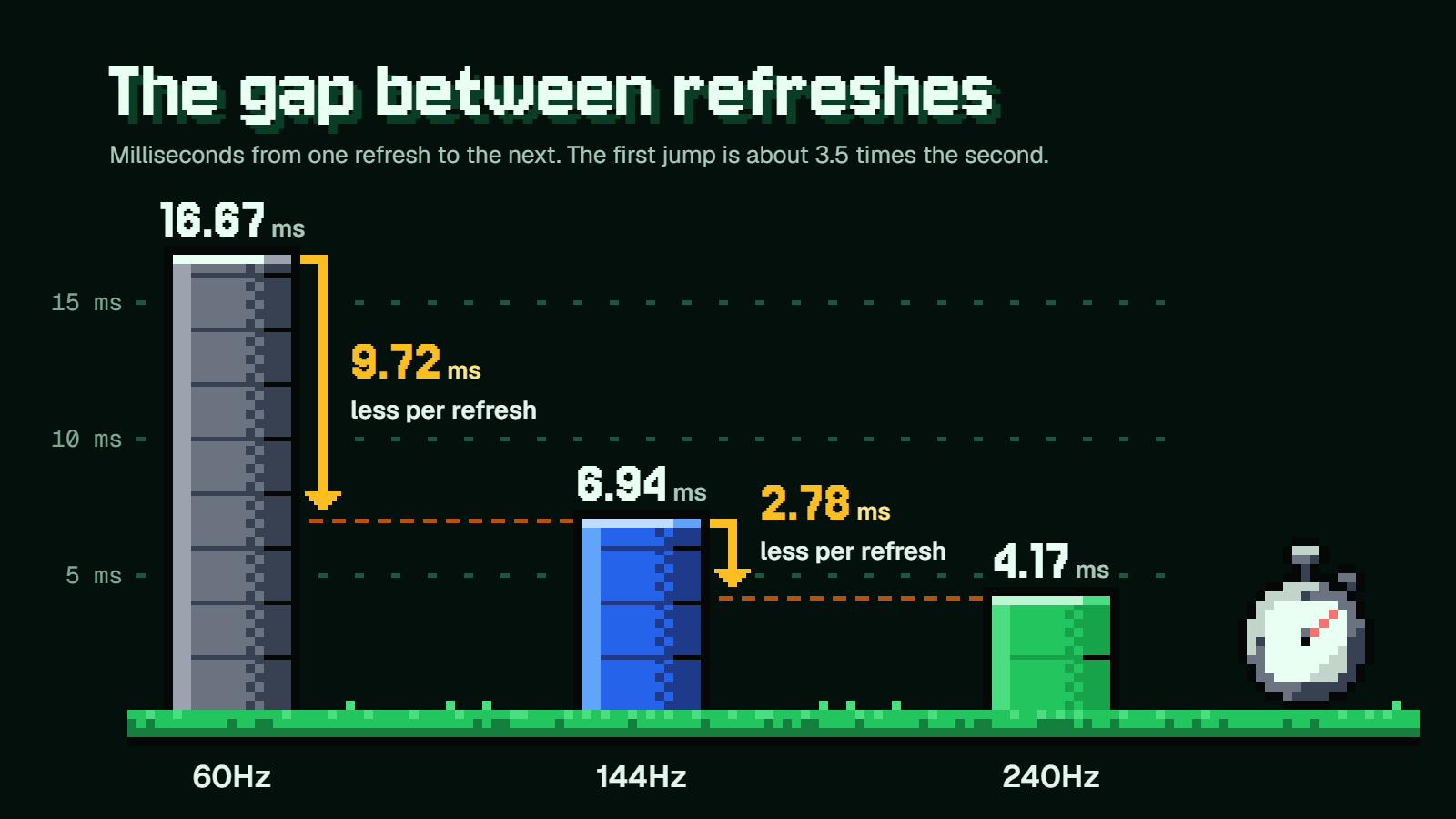
One number shows the size of the step. Going from 144Hz to 240Hz trims 2.78 ms off each refresh, while going from 60Hz to 144Hz trims 9.72 ms. So if you remember how big the jump from 60Hz felt, expect this one to be a lot quieter.
144Hz vs 240Hz in milliseconds
Two numbers get mixed up all the time. Nvidia puts it this way: "FPS is the rate at which your system, and in particular, your GPU completes frames and Hz is the rate at which your display shows those completed frames." Your PC makes the frames and your monitor shows them.
Divide 1,000 by the refresh rate and you get the gap between one refresh and the next:
- 60Hz: 16.67 ms
- 144Hz: 6.94 ms
- 165Hz: 6.06 ms
- 240Hz: 4.17 ms
The first jump, 60Hz to 144Hz, cuts 9.72 ms from every refresh. The second, 144Hz to 240Hz, cuts 2.78 ms. That makes the first jump about 3.5 times the size of the second, which is why people who expect the same "wow" twice end up underwhelmed.
Some monitors run at 165Hz instead of 144Hz. If that's what's on your desk, moving to 240Hz saves you only 1.89 ms per refresh.
On a spec sheet, 240Hz is 66.7% more refreshes per second than 144Hz, and that sounds enormous. The millisecond view is the more honest one, because milliseconds are what your eyes and hands deal with.
As for what changes on screen, Nvidia lists four things when high FPS meets a high-Hz display: smoother animation, less visible ghosting, smaller tearing and lower system latency. System latency is the time it takes your click or mouse movement to show up on the display. It has nothing to do with ping, which is network delay, and Nvidia's system latency guide goes through where that time is spent.
So the gain is real, just small. The obvious next question is whether a few milliseconds help you win fights.
What Nvidia's own figures show, and their caveats
You've probably seen the claim that high refresh rates give you a 90% better K/D. It comes from Nvidia, and it's worth reading closely before it sells you a monitor.
The K/D chart
In a December 2019 article, Nvidia took PUBG and Fortnite data from a study it ran earlier that year and compared players' kill/death ratios by frame rate. Relative to players at 60 FPS, K/D was 59% higher at 120 FPS, 78% higher at 140, 85% higher at 160 and 90% higher at 180.
Two details stand out. The chart stops at 180 FPS, so the 90% figure compares 180 fps with 60 fps and says nothing about 240. The curve also flattens: going from 100 to 140 FPS adds 41 points, while going from 140 to 180 adds only 12.
The monitor chart
An earlier piece from March 2019 does compare 60Hz, 144Hz and 240Hz monitors, for 1080p players only, grouped by graphics card. It draws on anonymized GeForce Experience Highlights data from PUBG and Fortnite. On every card that has a 240Hz bar, the gain for 240Hz over 144Hz is smaller than the gain for 144Hz over 60Hz.
Nvidia's own advice there was modest: "if you play Battle Royales and want to perform at your best, you should optimize your system for 144+ FPS and pair it with a 144 Hz monitor." It described 240Hz as "an additional boost" for people with a card that can "consistently run at 240 FPS."
That article also has a 53% figure floating around. It compares the median RTX 20-Series player with a GTX 600-Series player, so it's about graphics cards, not about 240Hz.
The fine print
Nvidia is upfront about the limits. Beside the K/D chart it says, "On its own, correlation doesn't mean causation of course." The monitor article adds, "One obvious explanation here could just be that better players tend to buy better hardware," and, "This data doesn't mean that simply upgrading your GPU will make you a better player."
The aiming numbers
A flick-shot chart from September 2020 measured aiming improvement over a 60 FPS/Hz setup. At 120 FPS/Hz, with 54.7 ms of system latency, the improvement was 28%. At 240 FPS/Hz, with 34.5 ms, it was 33%. Doubling the frame rate and refresh rate bought five more points.
Then there's an Nvidia Research study presented at SIGGRAPH Asia in November 2019. Eight skilled players were tested at 60, 120, 240 and 360Hz, with latency made equal across all of them. Lower latency clearly helped. Refresh rate alone had no statistically significant effect on single-click targeting and only a minor effect on tracking. The study's own conclusion: "high refresh rate is important largely because of the latency reduction it provides."
Put together, this is 2019 data from the company that sells the GPUs, and it shows correlation. It backs up "high frame rates and low latency help" far better than it backs up "240Hz beats 144Hz." It also points at your PC, because the frames have to come from somewhere.
The frame rate your PC must hold
A 240Hz monitor doesn't raise your frame rate. It can show a new frame on every refresh only if your game delivers one every 4.17 ms, which means about 240 fps.
Say you play Apex Legends and your counter sits around 150 fps. Your PC is handing over a frame roughly every 6.7 ms. Plug in a 240Hz monitor and it's still a frame every 6.7 ms. The panel refreshes more often, but there's no new picture for many of those refreshes.
That doesn't make 240Hz pointless at 150 to 200 fps. At 200 fps your PC produces a frame every 5 ms, and a 240Hz panel can show every one of them, where a 144Hz panel can't. You're just not getting the full benefit. Intel's take is that "Ideally, you'll want the game's frame rate to match the monitor's refresh rate 1:1," and it adds that "Playing at 110Hz is better than playing at 60Hz." More is still better than less.
Check your own numbers first
Before you buy, do what Intel suggests: play the games you care about with a frame rate counter running and note the average. Use a normal match, not the menu or an empty practice range.
If your average is well short of 240, you have two levers. Both the CPU and the GPU set your frame rate, and dropping to 1080p or lowering graphics settings raises it. Competitive shooters are usually played that way for this reason.
If your frame rate floats
Variable refresh rate, sold as G-SYNC or FreeSync, makes the monitor wait for each finished frame instead of refreshing on a fixed clock. When your FPS is below the refresh rate, that removes tearing without the input delay V-SYNC can add. It's the reason a frame rate that hovers around 190 or 210 still looks clean on a 240Hz panel.
Who should stay at 144Hz
Stick with 144Hz if any of these sound like you:
- Your PC can't hold well above 144 fps in your main games. The frames a 240Hz panel is waiting for won't arrive.
- You mostly play single-player or slower games. RPGs, strategy, open-world adventures and the like get more from resolution, contrast and color than from 2.78 ms.
- You play on console. PS5 and Xbox Series X|S top out at 120Hz, so 240Hz is a PC feature.
There's also a trade-off between speed and sharpness. Intel's older example builds show it well: the same class of PC, a Core i7-11700K with an RTX 3070, is listed for either 1080p at 240Hz or 1440p at 144Hz. Those parts are dated now, but the choice hasn't changed. A given amount of PC power can go toward a faster picture or a sharper one, and most players notice sharper every minute they're at the desk.
The people who should go for 240Hz are a smaller group. You play competitive shooters, your frame counter already sits near 240 fps in them, and you care about shaving off every bit of latency you can. For you, 240Hz is a sensible buy.
The cable, Windows setting and panel details that matter
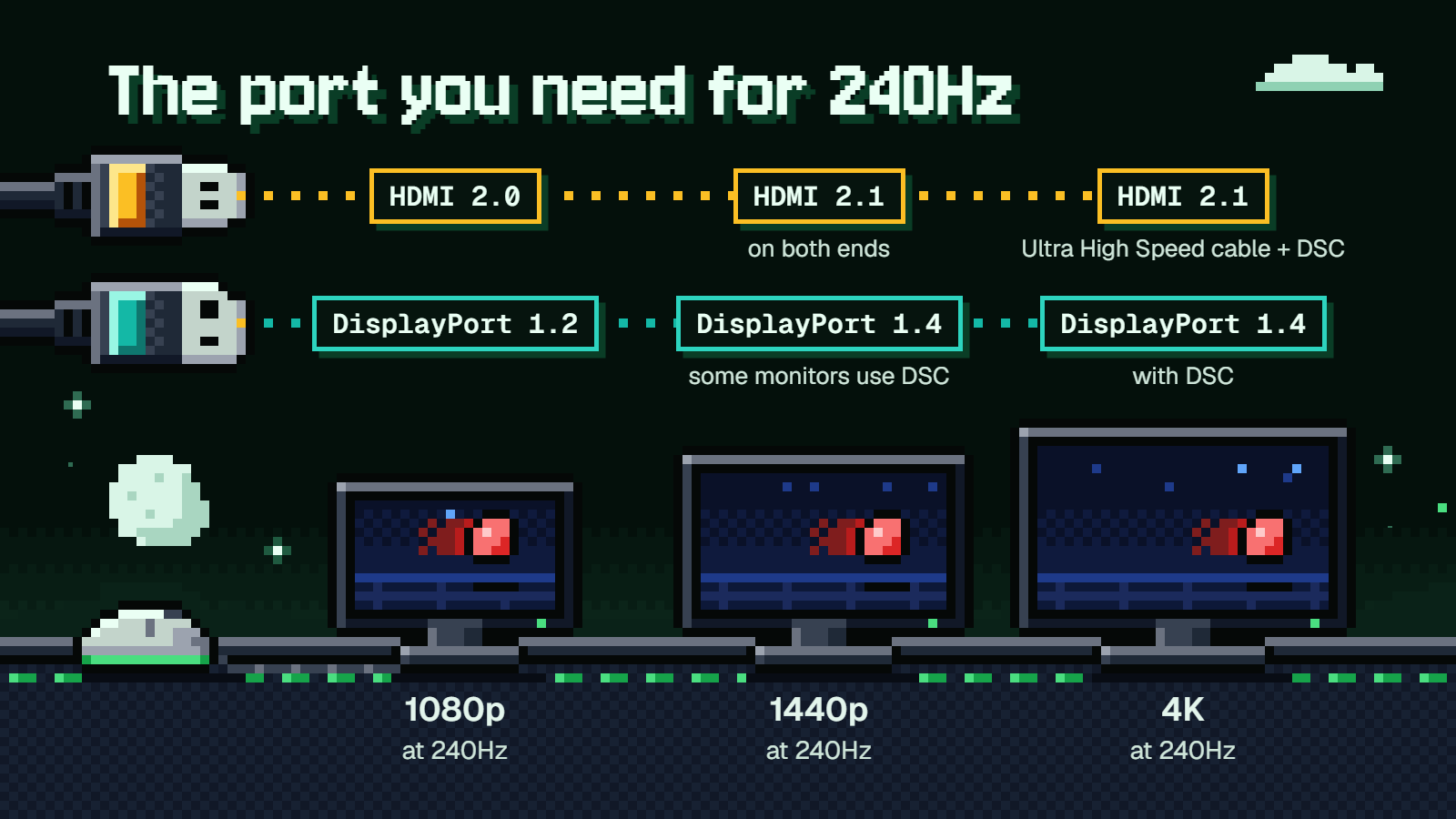
Plenty of perfectly good 240Hz monitors get blamed for problems that come down to a port or a setting. If yours feels no different or shows 60Hz or 144Hz, start here.
Cable and port
What you need depends on your resolution.
| Resolution at 240Hz | HDMI | DisplayPort |
|---|---|---|
| 1080p | HDMI 2.0 | DisplayPort 1.2 |
| 1440p | HDMI 2.1 on both monitor and graphics card | DisplayPort 1.4 (some monitors use DSC) |
| 4K | HDMI 2.1 with an Ultra High Speed HDMI Cable and DSC | DisplayPort 1.4 with DSC, or DisplayPort 2.1 UHBR20 uncompressed |
The classic "stuck at 144Hz" cause is HDMI 2.0 at 1440p, which stops at 144Hz. Switch to DisplayPort, or to HDMI 2.1 on both ends, and the higher rate shows up.
A few more things to check:
- Some monitors allow a lower refresh rate over HDMI than over DisplayPort, so look at which input your monitor's specs list for its top rate.
- Your graphics card's ports count too. An older card with older ports can be the limit, even with the right monitor and cable.
- Use the cable that came in the box, and skip third-party adapters. If you do need a replacement, VESA has a guide to choosing a DisplayPort cable.
Don't worry if your setup relies on DSC (Display Stream Compression). It's visually lossless, and the delay it adds is under 8 microseconds on a 4K 60Hz system.
Turning it on
A 240Hz monitor can happily run at 60Hz until you tell it otherwise.
- Check the monitor's own on-screen menu first and make sure the 240Hz setting is enabled there.
- On Windows 11, go to Start > Settings > System > Display > Advanced display and pick a rate next to
Choose a refresh rate. On Windows 10, go to Start > Settings > System > Display > Advanced display settings, then pick a rate underRefresh rate. - Set the refresh rate in your game's own graphics options as well, since a game can use a lower rate until you change it there.
Microsoft's page on changing the refresh rate in Windows covers the Windows steps.
Two Windows 11 quirks can catch you out. An asterisk next to a rate means your current resolution doesn't support it, and choosing it changes the resolution. The Dynamic refresh rate toggle on that page can also limit a game's maximum refresh rate, so turn it off if a game won't go above a lower number.
If you have an Nvidia card, you can also set it in Nvidia Control Panel under Change resolution, then Refresh rate. Nvidia notes that "You might have to change your resolution to the native resolution to run at the maximum refresh rate."
Panel details
Refresh rate is only half of a fast monitor. The pixels have to change color quickly enough to keep up, or 240Hz just gives you 240 slightly smeared pictures a second.
That's where the "1ms" on the box comes in, and it deserves some skepticism. It isn't one measurement. GtG (grey to grey) is how long a pixel takes to change from one grey value to another, while MPRT is how long a pixel stays visible on screen. They measure different things, and the quoted GtG is often the maker's best-case result, not a typical one.
Panel type tells you more:
- TN: fast and the most affordable, with narrow viewing angles.
- IPS: now matches VA and TN speeds for most purposes, with the widest viewing angles.
- VA: the best contrast of the LCD types, but it can show black smearing in motion.
- OLED: the fastest by far, as low as 0.03 ms GtG, but pricier and more prone to burn-in.
FAQ
Can you see the difference between 144Hz and 240Hz?
Some people can and some can't, and the makers say as much. Intel notes that "Online communities are divided about the improvement provided by monitors over 120Hz," and BenQ says the move from 144Hz or 165Hz to 240Hz "may not be as immediately visible, but the lower lag and smoother response will still be there." Expect something subtle, most noticeable in fast camera movement.
Is 240Hz worth it if I only get 150 to 200 fps?
It's not wasted, because a 240Hz panel can show every frame at 200 fps and a 144Hz one can't. You're getting part of the benefit, though, not all of it. If you're closer to 150 fps and not planning a PC upgrade, 144Hz or 165Hz is the more sensible match.
Do I need DisplayPort for 240Hz?
Not always. At 1080p, HDMI 2.0 handles 240Hz. At 1440p you need HDMI 2.1 on both the monitor and the graphics card, or DisplayPort 1.4. DisplayPort is usually the simpler pick on PC, since some monitors cap HDMI at a lower rate.
Why is my 240Hz monitor stuck at 60Hz?
Most often because Windows hasn't been told to use the higher rate. Check the monitor's on-screen menu, then the refresh rate in Windows display settings, then the game's graphics options. If 240Hz isn't offered at all, look at the cable, the port you're using and your graphics card's outputs.
Does a 240Hz monitor work at 240Hz on PS5 or Xbox?
No. PS5 and Xbox Series X|S support up to 120Hz, so a 240Hz monitor runs at 120Hz at most on those consoles. It'll still work fine, but you're paying for speed only a PC can use.