The fastest free way to get more frames is to make your PC draw fewer pixels: turn on the game's upscaler, then lower the few lighting settings that cost the most. The Windows and driver tweaks everyone lists are worth five minutes, but they aren't where most of the frames are.
How to increase FPS for free: the order to work in
Work through these in order, because each step tells you something about the next one.
- Turn on an FPS counter, so you can judge every change by a number.
- Run the free checks: graphics driver, Game Mode, power mode, background apps.
- Turn on the game's upscaler (DLSS, FSR or XeSS) at its Quality mode.
- Lower shadows, reflections and lighting, including volumetric lighting, then ambient occlusion.
- Leave texture quality as high as your card's VRAM allows, and keep anisotropic filtering at 16x.
Steps 3 and 4 do most of the work. Step 2 is a quick confirm, and step 5 is about not throwing away image quality for nothing. Without step 1, you're guessing.
Turn on an FPS counter and find out what's holding you back
You almost certainly have a counter installed already. Pick whichever matches your setup:
- Game Bar (any PC on Windows 11 or 10): press
Win+G. The Performance widget shows FPS, GPU utilization and GPU memory (your VRAM). - NVIDIA app: press
Alt+Zto open the overlay and find "Statistics" at the bottom of the side bar.Alt+Rtoggles the stats in-game. You get FPS, "FPS 1% Low", and GPU and CPU utilization. - AMD Software: Adrenalin Edition: type "Metrics" in its search box and open "Performance Metrics". It shows "Frame Rate", "GPU Utilization" and "CPU Utilization".
Ctrl+Shift+Otoggles the overlay.
Watch two numbers. Average FPS is the one everyone quotes. The 1% low tells you how far the frame rate drops in the worst moments, and that's what you feel as stutter. A game averaging 70 with 1% lows at 25 will feel worse than one sitting at a steady 55.
Match your target to your monitor
Before chasing a number, check what your screen can show. On Windows 11 go to Settings > System > Display > Advanced display and look at "Choose a refresh rate". On Windows 10 it's Settings > System > Display > Advanced display settings, under "Refresh rate".
A 60Hz display updates 60 times per second, and Intel puts it plainly: on a 60Hz monitor "you won't see benefits from frame rates over 60 FPS". So if you're on a 60Hz panel and already holding 60, your job is steadier lows, not a bigger average.
Is it the graphics card or the processor?
Play a demanding part of the game for a few minutes and watch GPU utilization.
If the graphics card is close to fully used while FPS is low, the card is the limit. That's good news, because nearly every setting later in this article takes work off the card.
If the card has a lot of spare capacity and FPS is still low, the processor is the limit. Your CPU sends the rendering instructions to the GPU, and when it can't send them fast enough, the card sits idle waiting for the next batch. Dropping shadows or resolution won't help much there, because the card wasn't the one struggling.
Say you're in a big city hub in an open-world game, your GPU reads 60% and FPS is stuck at 45. Turning shadows from High to Low will probably change very little. Take the same game into a quiet indoor area and the card might be the limit again, since games swap between the two all the time. Test in the spot that bothers you.
The five-minute driver and Windows check
Microsoft's own line is that "Windows 11 does most of the optimization for you", with a few settings worth a double check. So confirm each of these once and move on.
- Update your graphics driver.
- NVIDIA: open the NVIDIA app, go to the Drivers page, press "Download", then "Install".
- AMD: open AMD Software: Adrenalin Edition and choose "Manage Updates", which lists what's available.
- Intel: Intel Graphics Software gives you the latest drivers.
- Update the game, then repair it. Install any pending patch, and if the game runs badly or stutters for no clear reason, use your launcher's "Repair" or "Verify Integrity" option.
- Confirm Game Mode is on. Go to
Settings > Gaming > Game Modeon Windows 11 or 10. Microsoft says it "should be on by default". - Set the power mode.
- Windows 11:
Settings > System > Power & battery, then set "Power mode" to "Best performance". - Windows 10:
Settings > System > Power & sleep > Additional power settings > Show additional plans, then pick "High performance".
- Windows 11:
- Check the Graphics page. Go to
Settings > System > Display > Graphicsand open the default graphics settings. Turn on hardware-accelerated GPU scheduling if it's off; the switch only appears when your graphics card and driver support it. On Windows 11, also switch on "Optimizations for windowed games", then restart your game. - Trim startup apps. Press
Ctrl+Shift+Escfor Task Manager, open "Startup apps", right-click anything you don't need at boot and choose "Disable". - Stop background apps you don't use.
- Windows 11:
Settings > Apps > Installed apps, the app's "More options (…)", "Advanced options", then "Never" under "Let this app run in the background". - Windows 10:
Settings > Privacy > Background apps.
- Windows 11:
A few honest notes on what to expect. Game Mode gives your game priority access to hardware, and Microsoft says the gain "is directly related to the number and impact of other activities running on the device". If you game with a browser, a launcher or two and a chat app open, it helps more than on a clean desktop. For a quick look at what's eating resources mid-game, the "Resources" widget in Game Bar lists the hungry apps and can close them.
When hardware-accelerated GPU scheduling arrived, Microsoft said "users should not notice any significant changes". Leave it on anyway, because Nvidia's frame generation needs it.
Optimizations for windowed games is Windows 11 only. It covers DirectX 10 and DirectX 11 games in windowed and borderless windowed modes, and it cuts frame latency instead of adding frames.
The driver update is the one item here that can pay off properly, especially with a new game. Intel says driver updates "can give your FPS a real boost".
Turn on DLSS, FSR or XeSS at Quality mode
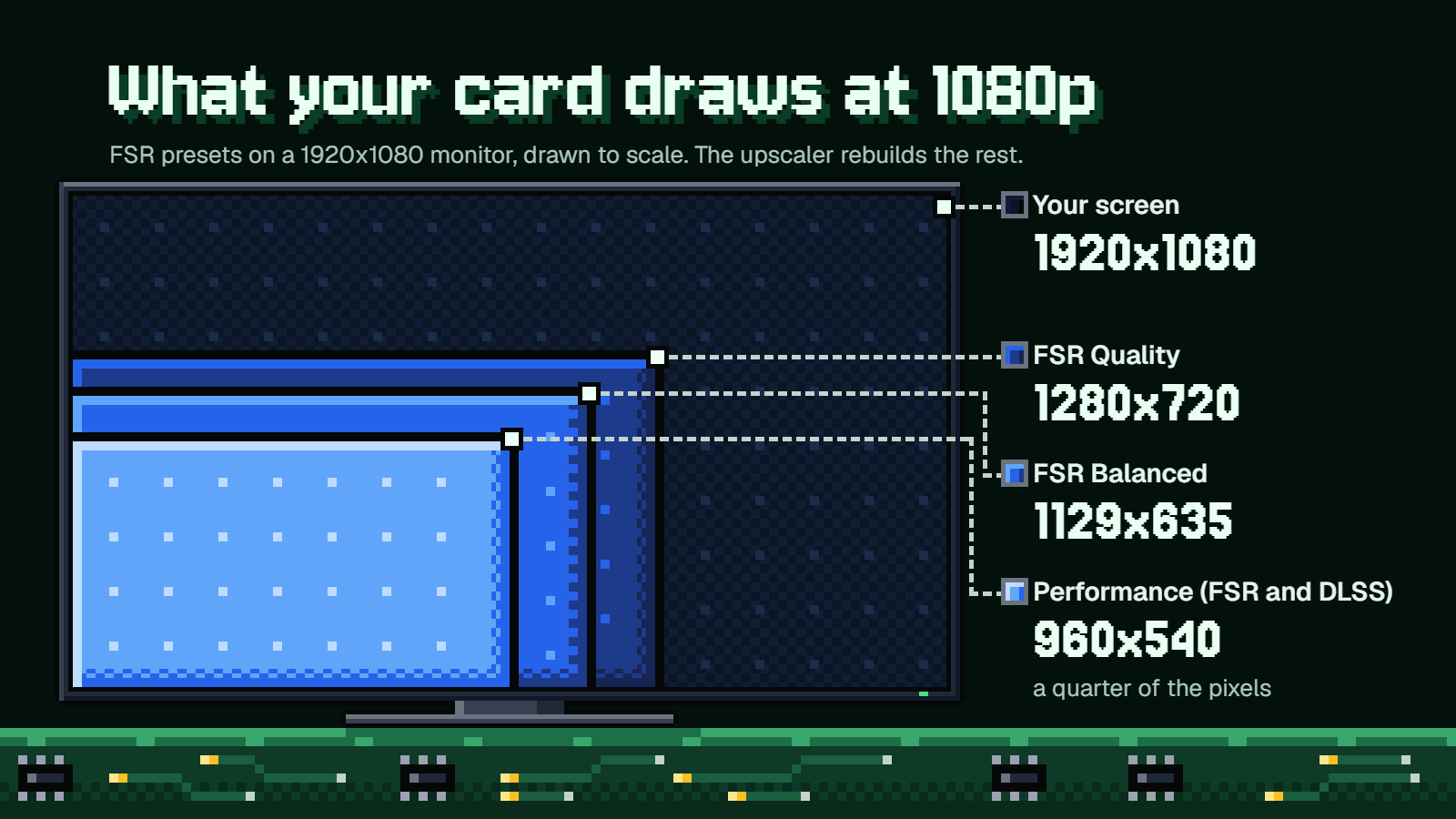
An upscaler renders the game at a lower resolution, then rebuilds a full-resolution picture from it. Your card draws fewer pixels per frame, so it gets through more frames per second. In its Call of Duty: Modern Warfare guide (October 25, 2019), Nvidia wrote that "the biggest gains will be found scaling your resolution", and the same logic applies in any game where the graphics card is the limit.
You could get the same pixel savings by dragging the game's render scale below 100%. The trouble is that plain render scale only stretches the smaller picture to fit your screen, which in Intel's words "will reduce clarity but improve performance". An upscaler does the same job with much smarter reconstruction, so you keep more sharpness for the same savings. If the game offers both, use the upscaler.
Which one you can use depends on your card, and on the game. Each upscaler has to be built in by the developer, so you're choosing from what the game's menu offers.
| Upscaler | Runs on | Quality | Balanced | Performance |
|---|---|---|---|---|
| Nvidia DLSS Super Resolution | GeForce RTX 20, 30, 40 and 50 Series | 1.5x | 1.724x | 2.0x |
| AMD FSR | FSR Upscaling 4.1.1: Radeon RX 9000 and RX 7000 Series. FSR 3.1.5 fallback: Radeon RX 500 Series or above, "or equivalent from other GPU vendors" | 1.5x | 1.7x | 2.0x |
| Intel XeSS Super Resolution (version 1.3 and later) | Intel Arc and Iris Xe, plus any other vendor's GPU that supports Shader Model 6.4 | 1.7x | 2.0x | 2.3x |
If you have an RTX card, use DLSS where it's offered. On a GeForce card without the RTX badge, DLSS isn't available, but FSR's fallback version and XeSS aren't locked to their makers' hardware, so one of them will often be in the menu. AMD doesn't give technical support for FSR on other brands' cards, though. You may see the newest AMD version labeled "AMD FSR Upscaling" or "AMD FSR 4", depending on the game.
What the preset names mean on a 1080p screen
Those numbers in the table are how much smaller each side of the picture gets, and the names don't line up between brands. Here's what your card draws on a 1920x1080 monitor:
- FSR at Quality renders 1280x720.
- FSR at Balanced renders 1129x635.
- Performance renders 960x540 in both FSR and DLSS.
That last one is a quarter of the pixels on your screen, which is a lot to ask any upscaler to rebuild at 1080p.
"Quality" is 1.5x in DLSS and FSR, but 1.7x in XeSS. So XeSS Quality is about the same render resolution as FSR Balanced, and XeSS Balanced matches FSR Performance. The XeSS preset that lines up with the other two at Quality is "Ultra Quality", at 1.5x. Those XeSS scales are the ones Intel has used since XeSS 1.3. A game that still ships an older XeSS version uses 1.5x, 1.7x and 2.0x for Quality, Balanced and Performance, the same as FSR.
For a 1080p budget setup, start at Quality and drop one step only if you still need frames. At 1080p there aren't many pixels to begin with, so the lower modes get soft quickly. Intel itself recommends XeSS Performance and Ultra Performance for 1440p and above. If a DLSS game has an "Auto" option, Nvidia's guidelines have it pick Quality at 1080p anyway.
If a game has no upscaler in its menu, Nvidia Image Scaling (in NVIDIA Control Panel) and AMD Radeon Super Resolution do a simpler version of the job from the driver.
Why frame generation won't fix low FPS
Frame generation sits right next to the upscaler in many menus, and it looks tempting because the FPS number jumps. It works by inserting generated frames between the ones your card really rendered. So it needs a healthy supply of real frames to work from.
The makers are blunt about this. AMD says FSR Frame Generation "runs best when interpolating from a minimum of 60 fps", that below 60 fps is "not recommended" because artifacts become more prominent, and that below 30 fps it "should be absolutely avoided". Intel's targets for XeSS Frame Generation are "40 FPS minimum" and "60 FPS recommended" before generation.
There's a latency cost too. Nvidia explains that the newer real frame is held back until the generated one has been shown, which "inherently introduces a degree of latency". So a game running at 30 with frame generation on may show a bigger number while the controls feel no quicker than they did at 30, and possibly a touch slower.
It's also not available on every budget card. Nvidia's version needs an RTX 40 Series card or higher, while AMD's older analytical version runs on Radeon RX 5000 Series and above.
If you're under 60, leave it off and get real frames from the settings below. Once you're comfortably past that, try it and see if you like the feel.
Which settings to lower first: shadows, reflections and lighting
Intel's advice is to turn down "the big three first: shadows, reflections, and lighting". If your game has ray tracing switched on, turn that off before anything else, then work down this list.
Change one setting, play the same stretch of the game, read your counter, then move to the next.
- Shadows. Drop one or two notches. Intel notes that in fast-paced games, medium or low "may give FPS gains with low visible impact".
- Reflections. Screen space reflections from High to Medium is the usual first move.
- Lighting and volumetric lighting. This covers global illumination and the "god rays" style of fog and light shafts.
- Ambient occlusion. Turn it down or off. Intel suggests trying this before you touch texture quality.
- Heavy anti-aliasing. If you're on MSAA or SMAA4x, drop the sample count (4x to 2x) or switch to a post-process option such as FXAA.
Nvidia's own game guides show how much these can cost in its tests. They're figures from one game on Nvidia's test PC at that date, so don't read them as a forecast for yours.
- Shadows: in Destiny 2 (guide dated October 17, 2017), Shadow Quality was the most demanding setting apart from Render Resolution. "Highest" cost 12 FPS more than "Lowest", and going from "Highest" to "High" got back 4.1 FPS. In Fallout 4 (January 15, 2016), maximum Shadow Quality cost over 20 FPS, with "High" around 10 FPS cheaper and "Medium" 13 cheaper.
- Reflections: in Control (August 27, 2019), Screen Space Reflections at "Medium" instead of "High" gave +9 FPS, with ray-traced reflections off.
- Anti-aliasing: in Shadow of the Tomb Raider (October 8, 2018), SMAA4x cost 23.7 FPS, against 2.1 to 4.9 FPS for the post-process options.
Volumetric lighting depends on the game
Intel warns that volumetric lighting "may have a significant performance cost", and in Control it did: Medium instead of High gave +9 to 11 FPS in Nvidia's test. In Shadow of the Tomb Raider, the same-named setting cost "less than a frame per second in most locations".
That gap is why you test one setting at a time. If you drop five things at once and gain 15 FPS, you can't tell which one earned it, and you may have made the game uglier in four ways for nothing. Some games also have their own oddball heavy hitter. In Grand Theft Auto V (April 21, 2015), Nvidia found Grass Quality had the largest performance impact of any setting in the game.
When a setting gives you nothing back on your counter, put it back up.
Settings to leave high: textures and anisotropic filtering
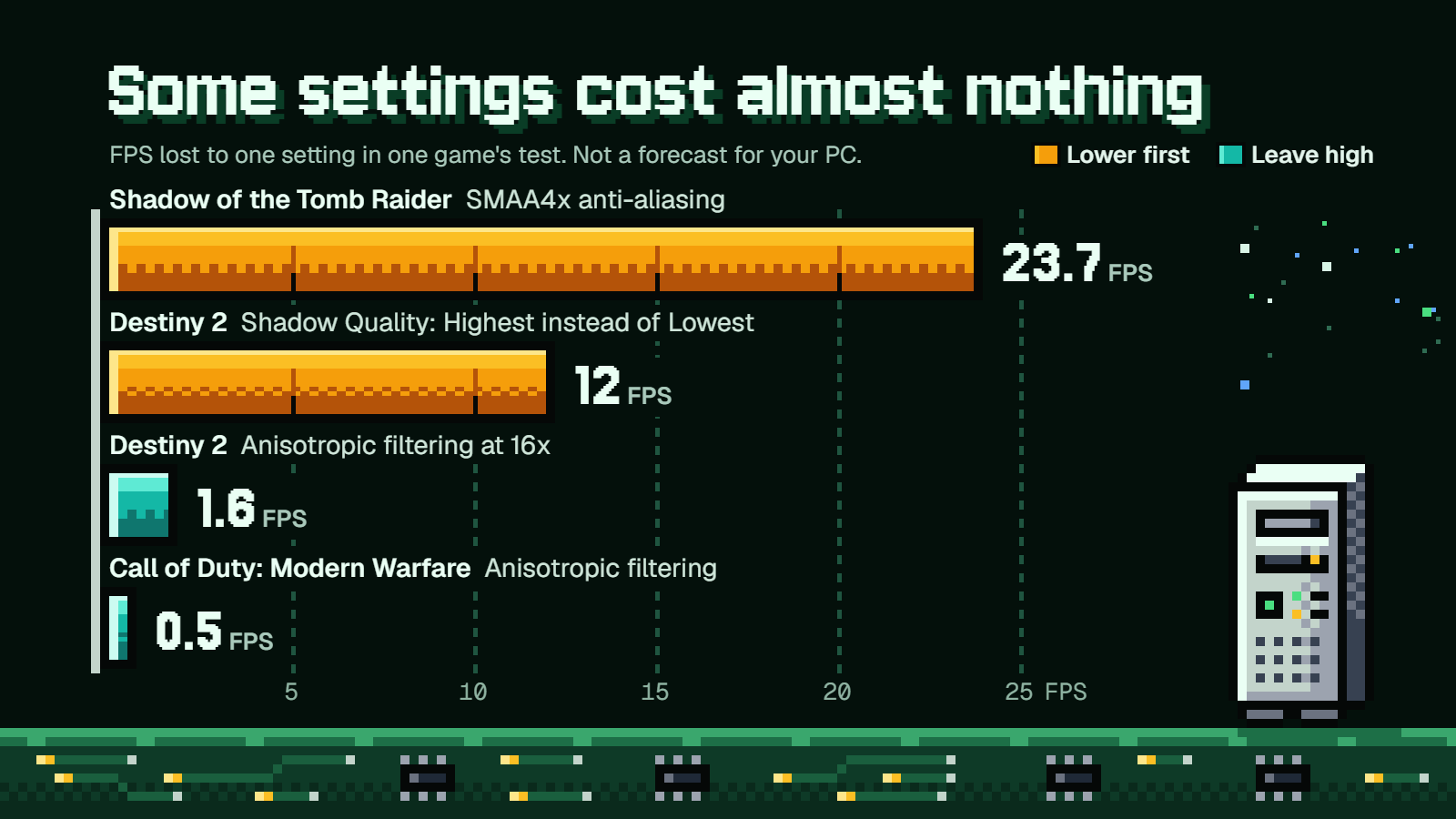
The instinct on a slow PC is to set everything to Low. Don't do that with textures and anisotropic filtering, because they cost almost no frames.
Anisotropic filtering keeps ground and wall textures sharp when you see them at an angle, like a road stretching away from you. Nvidia's position is that it "has a negligible performance cost in virtually every PC game, and 16x should be used in all instances". Its measurements were 1.6 FPS for 16x in Destiny 2 (2017) and half a frame per second in Call of Duty: Modern Warfare (2019).
Texture quality is much the same. Nvidia says "adjusting texture detail has no perceptible impact on performance" in almost all games, and maximum textures cost less than 2 FPS in its Call of Duty: Modern Warfare test. Dropping textures to Low makes every surface blurry and gives you almost nothing back.
The catch is VRAM
Textures live in your card's video memory. If a texture setting needs more VRAM than you have, the frame rate doesn't sag gently. You get stutter instead. Nvidia's 2018 Shadow of the Tomb Raider guide recommends a 6GB card for "Ultra" textures, "otherwise you may encounter stuttering when textures are repeatedly swapped in and out of memory".
So the rule is "as high as your VRAM allows", not "always max". You can watch GPU memory in Game Bar's Performance widget, or as dedicated GPU memory on Task Manager's Performance tab. If it's full and your 1% lows are ugly while the average looks fine, drop textures one notch and check again.
V-Sync, frame caps and the one-click options
V-Sync locks the game's frame rate to your monitor's refresh rate to stop screen tearing. It also adds latency. Nvidia's summary is that "Off is useful if performance is more important than image quality". If you're struggling for frames, try it off. If the tearing bothers you more than the lost responsiveness, turn it back on. With a variable refresh rate monitor you don't get tearing while FPS stays below the refresh rate.
A frame cap won't raise your FPS, but it can make a game feel steadier and keep your card cooler and quieter. If your game swings between 60 and 90 on a 60Hz screen, capping at 60 loses nothing you could see. Nvidia has "Max Frame Rate" under NVIDIA Control Panel > 3D Settings, and AMD has "Frame Rate Target Control", which works in full screen mode.
If tuning by hand isn't your idea of fun, there are two shortcuts:
- NVIDIA app "Optimize": on the Graphics tab, pick a game and press "Optimize" to apply Nvidia's recommended in-game settings for your GPU, CPU and display. Slide toward "Performance" if you want frames over looks.
- AMD HYPR-RX: a one-click profile on the AMD Software home tab that turns on Radeon Anti-Lag, AMD Fluid Motion Frames 2.1, Radeon Super Resolution, Radeon Boost and FSR together. It needs a Radeon RX 7000 Series card or newer.
HYPR-RX includes driver-level frame generation, so the earlier warning applies. It works best when the game already runs well.
Extra checks on a gaming laptop
Laptops add three things to the list.
Plug it in. Windows 11 sets the power mode separately for "Plugged in" and "On Battery", so set "Best performance" under "Plugged in" at Settings > System > Power & battery. Be aware of the trade: Microsoft says this mode increases power consumption, so a laptop drains its battery more quickly and may run warmer.
Make sure the game uses the right GPU. Many gaming laptops have two, a low-power one and the proper graphics card. To pin a game to the fast one:
- Open
Settings > System > Display > Graphics. - Under "Custom options for apps", select the game, then "Options".
- Set "Graphics preference" to "High performance".
- Select "Save" and restart the game.
Watch the heat. A hot laptop slows itself down to protect its parts, so FPS that starts fine and sinks after twenty minutes usually points to temperature. Play on a hard, flat surface, keep the vents clear, and don't run it on a bed or a cushion.
If you do have to play on battery, a lower refresh rate and a frame cap will stretch your playtime, since both cut how hard the hardware works.
FAQ
Does updating graphics drivers increase FPS?
It can, mostly in newer games. Intel says driver updates "can give your FPS a real boost", and new drivers often arrive alongside big releases. In an older game that already ran fine, don't expect much. It takes a few minutes and costs nothing, so do it first.
Does Windows Game Mode increase FPS?
A little, and it depends on what else is running. Game Mode gives the game priority over other activity on your PC, so the gain grows with how much background stuff you have going. It should already be on by default. Confirm it at Settings > Gaming > Game Mode.
Is upscaling better than just lowering resolution?
Yes, if the game offers it. Both make your card draw fewer pixels, but lowering resolution or render scale simply stretches the smaller image, which blurs it. DLSS, FSR and XeSS rebuild a full-resolution picture, so the result looks closer to native for the same savings.
Should I turn on frame generation if my FPS is low?
No. It needs real frames to work from. AMD recommends at least 60 fps before generation and says to avoid it completely below 30, while Intel sets 40 FPS as its minimum. Below those levels you get more visual glitches and the controls don't feel any faster.
Why didn't lowering my settings raise my FPS?
Most likely your processor is the limit, not your graphics card. If GPU utilization is well below full while FPS is low, the card is waiting on the CPU, and graphics settings mostly lighten the card's load. Other usual suspects are a frame cap or V-Sync holding you at your refresh rate, or full VRAM causing stutter that lower shadows won't fix.