Yes, you can host a Palworld dedicated server on the PC you already own, and it's less work than most guides make it sound. You download a free server tool, leave it running, open one port on your router, and your friends connect with your IP address.
Can You Host Palworld on Your Own PC?
You can, and it takes three things:
- The server tool. It's called Palworld Dedicated Server, and you get it through the Tools filter in your Steam library or through SteamCMD.
- The hardware. A PC with 4 or more CPU cores and 16GB of RAM.
- The network. A router that lets you forward UDP port 8211.
Once those are sorted, friends join by typing in your IP address and port.
If someone in your group plays on Xbox or PS5, skip down to the console section before you do anything else. Whether they can get in depends on platform support that you should check first, and it would be a shame to set all this up and find out afterward.
What Your PC Needs to Run the Server
These figures come from the requirements page of Pocketpair's server guide, Version 1.0.4. Older versions of that guide are still floating around online, so if another page shows you different numbers, that's probably why.
- CPU: 4 cores or more.
- RAM: 16GB, with more than 32GB preferred.
- Storage: a fast SSD is recommended.
- OS: Windows 64-bit or Linux 64-bit (Ubuntu, AlmaLinux and similar).
- Network: a router that can port forward.
The RAM line is the one to take seriously. The guide says the server can boot on 8GB, but it risks crashing because it runs out of memory. So 8GB will get you a server window, not a world you can rely on.
The SSD recommendation matters more than it looks, too. Pocketpair warns that slow storage can corrupt save data. If your only free space is on an old hard drive, move things around so the server sits on the SSD.
Hosting and playing on the same PC
Say your gaming PC has 16GB of RAM and you want to run the server and play on it at the same time. That 16GB figure is what the server wants for itself. Once you launch Palworld on top, the game, Windows, Discord and your browser are all eating from the same 16GB.
It may start fine. But you're running the server below its own recommendation from the first minute, and the more your friends build, the tighter it gets.
My honest take is that with 16GB you should pick one job for that PC. Either host on it and play somewhere else, or put the server on a spare machine. With 32GB or more, sharing one PC is a much more reasonable plan, though nobody can promise you how it will behave with your world and your group.
Steam or SteamCMD: Which One to Pick
Both methods install the same server. The difference is how you get it and how you look after it.
| Steam | SteamCMD | |
|---|---|---|
| Who it suits | First-time hosts on a Windows PC that already has Steam | People comfortable with a command line, spare PCs, Linux boxes, machines with no monitor |
| How you update | Through your Steam library, like any other download | Run the download command again |
| Needs the Steam client open | Yes, you launch it from Steam | No, it logs in anonymously |
For most people, Steam is the right pick. You already own the game there, and it's a few clicks.
Go with SteamCMD if the server is going on a machine you don't play on, especially one you'd rather not install the full Steam client on.
Setting Up a Palworld Dedicated Server with Steam
This is the route from Pocketpair's deploy instructions, Version 1.0.4.
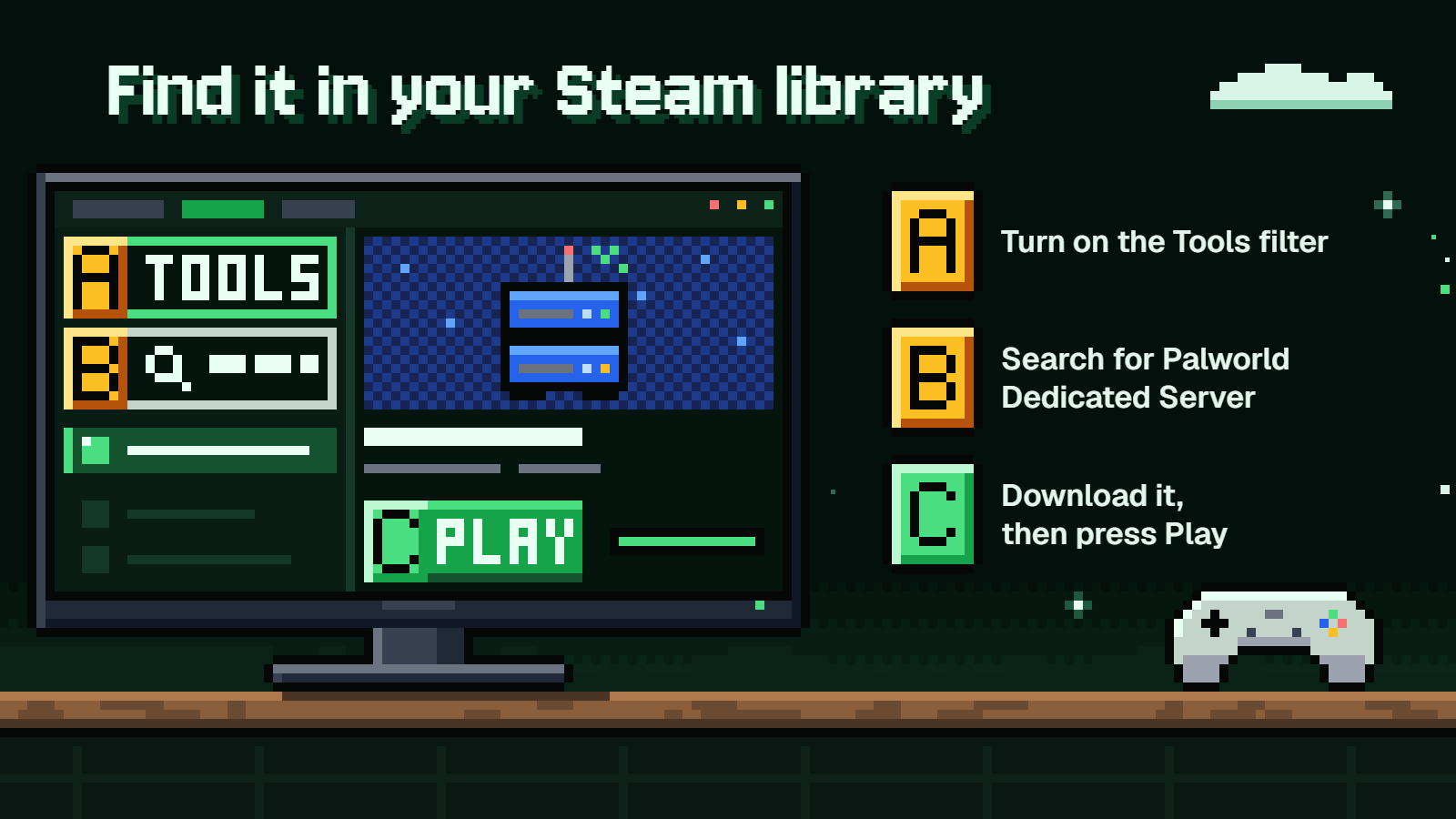
- Open your Steam library.
- Turn on the Tools filter in the library list. Server tools are hidden by default, which is why you've never seen this one.
- Search for Palworld Dedicated Server.
- Download it.
- Launch it, choose Play Palworld Dedicated Server, and click Play.
A server window pops up, and that means it's running. Leave that window open, because closing it shuts the server down.
At this point, the server only exists on your home network. Friends outside your house can't reach it until you've opened the port, which is two sections down.
Installing the Server with SteamCMD
First, install SteamCMD by following Valve's own instructions for your system. Then, on Windows, open a command prompt in the SteamCMD folder and run:
steamcmd +login anonymous +app_update 2394010 validate +quit
That logs in anonymously, so there's no account to enter. It downloads app 2394010, which is the dedicated server, checks the files, and quits. Then start it:
cd .\steamapps\common\PalServer
PalServer.exe
On Linux, the download command is the same. After it finishes:
cd ~/Steam/steamapps/common/PalServer
./PalServer.sh
Either way, you end up in the same place as the Steam route, with a server that's running but not yet reachable from outside your house.
Opening UDP Port 8211 on Your Router and Firewall
Your router is the front door of your home network. When a friend's game knocks on it asking for Palworld, the router has no idea which device inside should answer, so it ignores the knock. Port forwarding is you telling it to send anything arriving on UDP port 8211 to the PC running the server.
The menus differ by router brand, but the job is the same:
- Find the local IP address of the server PC. As a made-up example, it might be
192.168.1.50. - Log in to your router's admin page and find the port forwarding section.
- Add a rule with protocol UDP, port 8211, pointing at that local IP.
- Save it.
Pick UDP specifically. A rule set to TCP only won't work.
Then there's the PC itself. Windows Firewall can block incoming connections to the server even when the router is set up right. If Windows asks whether to allow the server when it first launches, say yes. If it doesn't ask, add an inbound rule allowing UDP 8211.
Port 8211 is only the default and can be changed. If you do change it, the router rule and the firewall rule both have to match the new number.
That one port is all you need to open.
How Friends Join, and What a Community Server Is
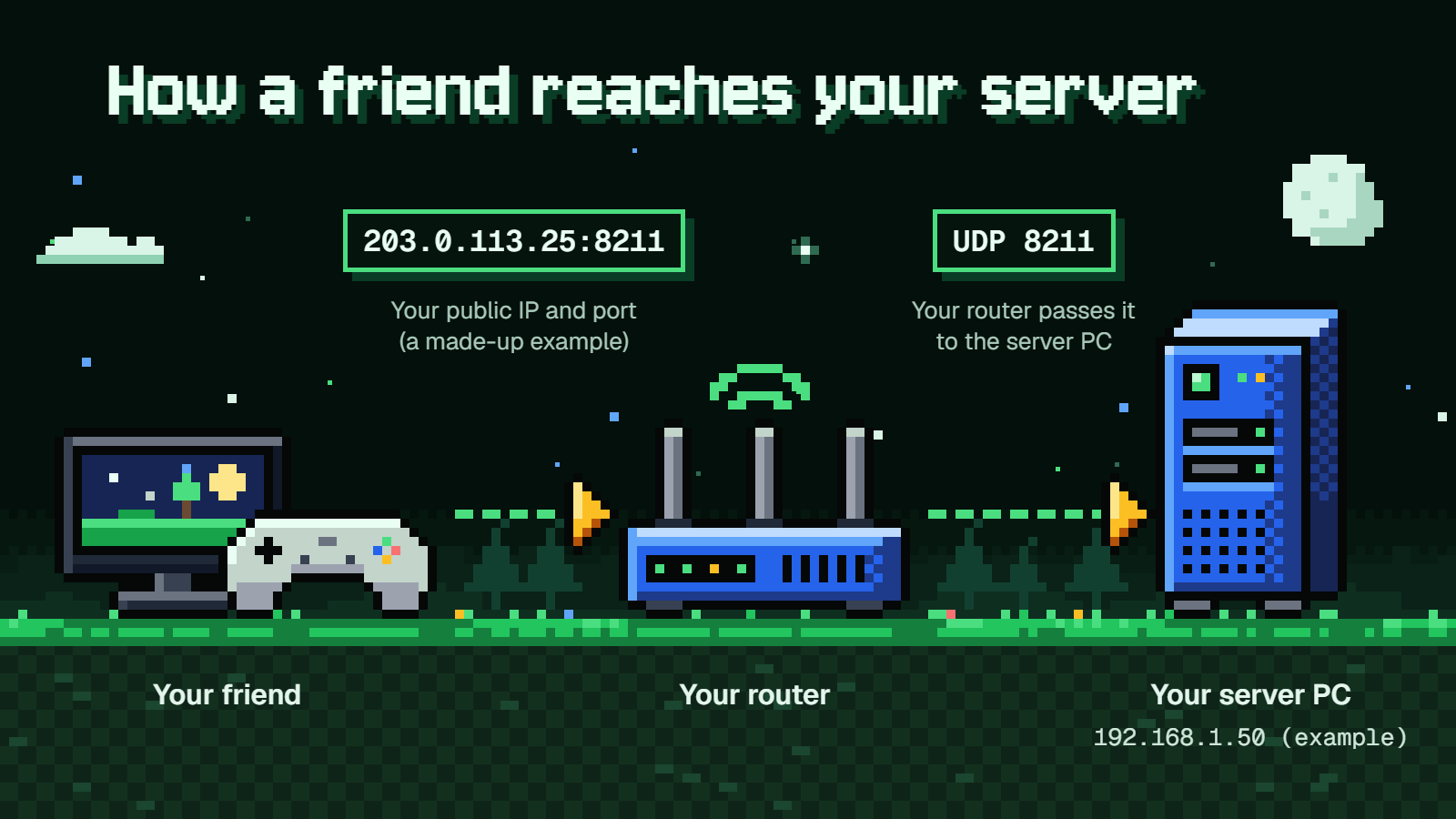
Friends join a dedicated server with your IP address and port. That's your public IP, the one your internet provider gives your whole house, not the 192.168.x.x one from the last section. You can find it by searching "what is my IP" from the server PC.
They enter the public IP and port together, with a colon between them. With a made-up address, that looks like:
203.0.113.25:8211
Now for the naming confusion. "Dedicated server" and "community server" sound like two different products, but they aren't. A community server is the same dedicated server, registered so it shows up on the in-game server list. If it isn't listed, people need your IP. If it is, they can find it by name.
For a private friend group, joining by IP is fine and keeps strangers from stumbling in. Pocketpair's About server page lays out the server types side by side.
Server Settings, Launch Options and Admin
Once people can connect, you'll want to make the world yours. The server's options live in a file called PalWorldSettings.ini. That's where you set things like the server name, a password so only your group gets in, the player limit, and the rates and rules that decide how grindy or forgiving your world is.
Setting names and defaults have changed between versions of the server, so don't copy a config block from an old forum post. Work from the configuration parameters list for the current version. It tells you where the file sits and what each line does.
Two habits will save you a headache:
- Stop the server before you edit the file, then start it again afterward.
- Change a couple of settings at a time, so if something breaks you know which line did it.
The server also accepts launch arguments, which are options you add when starting it. They cover things like running on a different port or listing the server publicly. The same guide has the current set, along with the admin side: how to give yourself admin rights and which commands you can run. Take those from Version 1.0.4 rather than from memory or older write-ups.
Can Xbox and PS5 Players Join?
Don't promise your console friend a spot until you've checked. A home server runs the Windows or Linux server software from Steam, and Steam players joining it by IP is the standard case. Whether an Xbox or PS5 player can join depends on which platforms that server supports and how it's set up.
The way people join matters here too. A PC player can type in an IP and port. If a console player needs to find you through the in-game list instead, your server would have to be registered as a community server.
Before you forward a single port, open the About server page linked above and read the platform section for the current version. It lists which platforms can connect to which server type. If your friend's platform is there, follow what it says about setup. If it isn't, you'll know before spending an evening on router menus.
FAQ
Can I run the server on 8GB of RAM?
It can boot. Pocketpair's guide (Version 1.0.4) says so, and in the same breath warns that it risks crashing from lack of memory. Treat 16GB as the real floor and 32GB or more as the comfortable target.
Can I play on the same PC that hosts?
Yes, the server and the game can run side by side. The catch is memory, since the 16GB recommendation is for the server alone. On a 16GB PC, you're squeezing both into one budget, so it's a much better idea on a machine with 32GB or more.
Can I change the port from 8211?
Yes. UDP 8211 is the default and it's changeable. Update your router's forwarding rule and your firewall rule to the new port, and give friends the new number after the colon.
What's the difference between a dedicated and a community server?
They're the same software. A dedicated server is joined by IP address and port. A community server is that dedicated server registered on the in-game server list so people can find it there.
Does the server run on Linux?
Yes. The guide lists Linux 64-bit, naming Ubuntu and AlmaLinux as examples. You install through SteamCMD with the same download command as Windows, then start it with ./PalServer.sh.