You can have a Build 42 server running on your own Windows PC in one evening. Install the Project Zomboid Dedicated Server, fix one memory setting, pick an admin password, open two ports, and give your friends your IP address. Everything below is written for stable version 42.21.
How to get a Project Zomboid server running on your own PC
The whole route has five steps:
- Install "Project Zomboid Dedicated Server" from Steam's Tools list or with SteamCMD.
- Open
StartServer64.batand lower the memory setting, because the default is too high for most gaming PCs. - Start the server and type an admin password when the console asks for one.
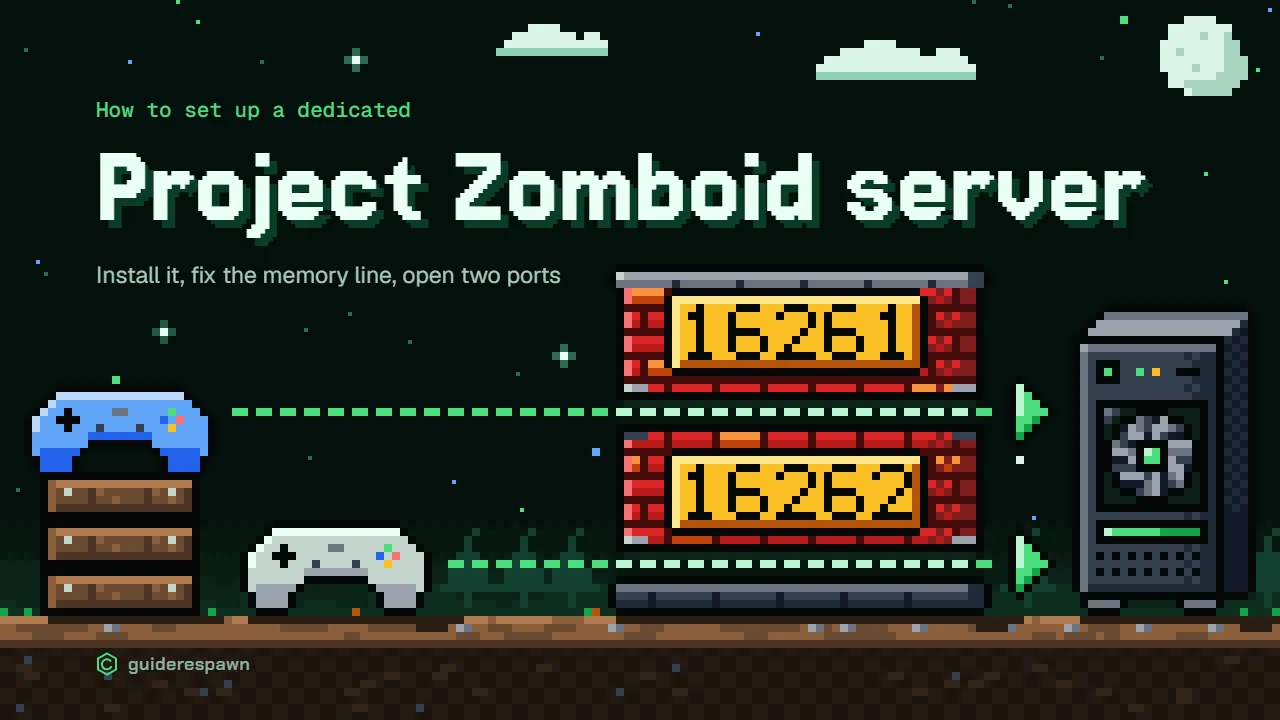
- Open UDP ports 16261 and 16262 in Windows Firewall and on your router.
- Have your friends go to Join in the main menu and enter your IP and port 16261.
Settings and mods come after that, once you know the server starts.
Before you install anything, though, ask yourself whether you need a dedicated server at all. For a lot of friend groups, the Host button in the main menu does the job with none of this work.
Host or dedicated server: decide before you install
Host runs a co-op server from inside your game. You go to Host > Manage settings > Create new settings > Save > Back > Start, and you're in. Friends join by Steam invite (ESC > Invite in game, or through Steam). It needs no public IP address and no port forwarding. The catch is that the world only exists while you're playing.
A dedicated server is a separate program with its own console window. It keeps the world up whether or not you're in the game, so your friends can log in while you're at work, as long as the PC is on and the console is open. They find it in the Join screen's "Internet" tab or connect by IP address and port.
That freedom has a requirement. A dedicated server at home needs a public IP address from your internet provider, plus the two open ports. Some providers don't assign a public IP, and then you can't host from home, however carefully you set everything else up. If you're not sure about your connection, ask your provider before you spend an hour installing.
If you've already started a Host game, only the map can move over to a dedicated server. Characters can't, because the two save them differently.
My take: if you only ever play together, use Host. If people want to drop in on their own schedule, go dedicated.
Build 42 is the default branch now
Older guides tell you to opt into an unstable beta to get Build 42. That's out of date. Build 42 went stable as 42.20 on July 29, 2026, and the current stable version is 42.21. In Steam, under Properties > "Game Versions & Betas", leave it on None and you get the latest stable version.
Build 41 saves don't work in Build 42. If your group wants to keep playing a Build 41 world, the game and the server both switch to the legacy41 branch in that same menu. Saves from Unstable 42.19 don't carry into 42.20 or later either. The Build 42 stable plans announcement covers both.
The game and the server have to be on the same version. Since 42.21, a player on a different version gets a notification when they try to join, which at least tells them what's wrong.
Install the server: Steam library tool or SteamCMD
There are two ways to get the server files.
| Steam library tool | SteamCMD | |
|---|---|---|
| Account needed | Your own Steam account | None (login anonymous) |
| Where it installs | SteamLibrary\steamapps\common\Project Zomboid Dedicated Server |
The folder you choose, for example C:\PZServer |
| Updates | Through Steam, like your other library items | By hand: you run the update command again after each game update |
| Pick it when | You want the fewest steps and a few clicks | You play on the same PC and account, or want the route the developer's support recommends |
For the library tool, open your Steam Library, click the "Games" menu at the top left, tick "Tools", and install "Project Zomboid Dedicated Server".
It's the easy route, but the developer's forum support says the library tool "can have some issues, especially if you are using the same account to run the game as well", and recommends SteamCMD instead. Since most people hosting at home are also playing on that account, SteamCMD is the one I'd go with.
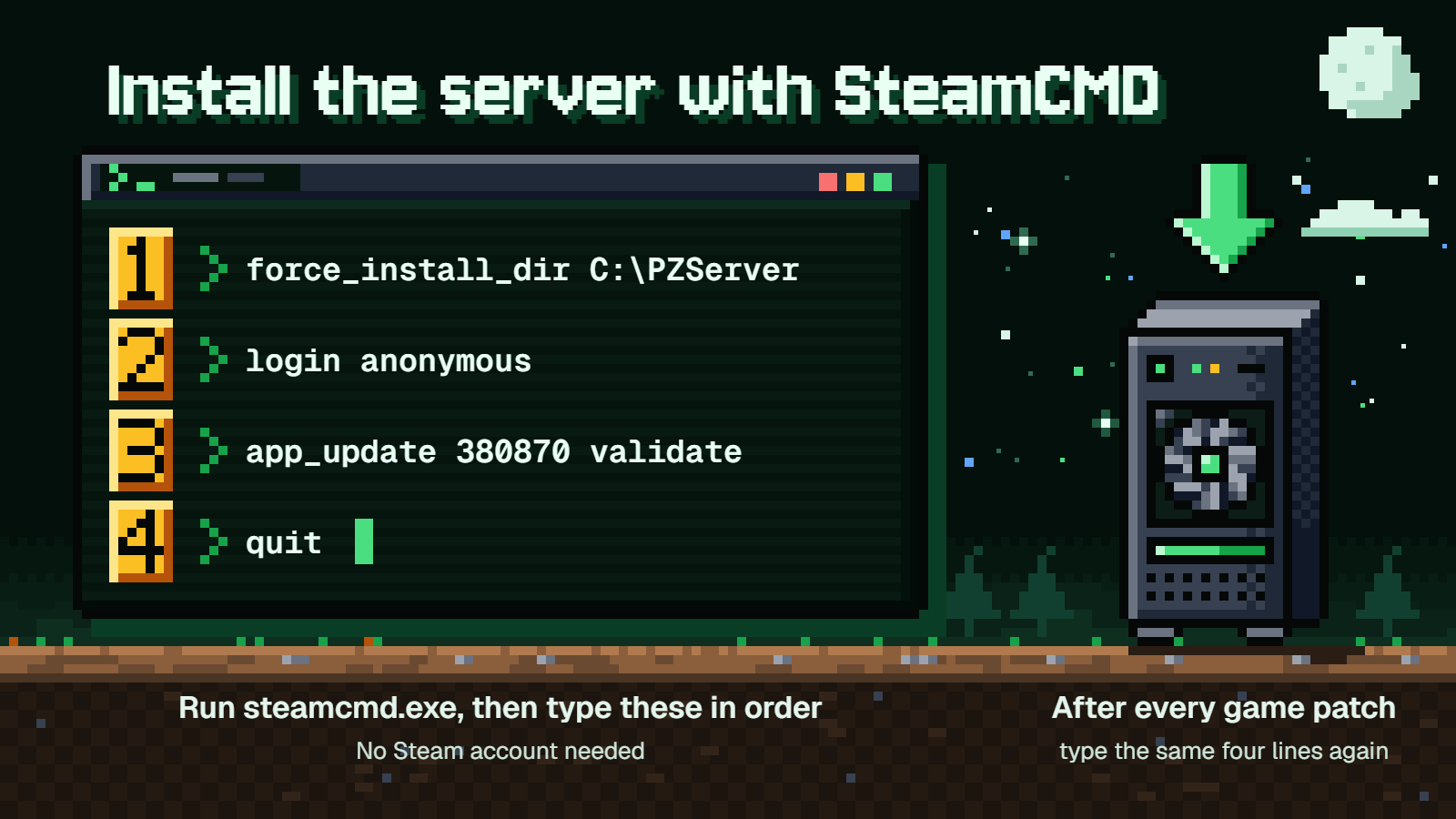
Download SteamCMD from Valve's developer site and unzip it into its own folder, for example C:\steamCMD. Run steamcmd.exe, then type these in order:
- Choose where the server goes:
force_install_dir C:\PZServer
- Log in without an account:
login anonymous
- Download the server:
app_update 380870 validate
- Close SteamCMD:
quit
A SteamCMD install doesn't update itself. After every game patch, you run app_update 380870 validate again, or your friends' updated games won't match your server.
On Linux, the server starts with start-server.sh, and the -Xmx value is also set in ProjectZomboid64.json in the server folder.
Fix the memory line before the first start
In your server folder there's a file called StartServer64.bat. Don't double-click it yet. Right-click it, choose Edit, and look for this:
-Xms16g -Xmx16g
That tells the server to use 16 GB of memory. On a PC with 16 GB in total, that's all of it, and a server given all of the PC's memory crashes.
The official advice is to delete the -Xms16g part and set -Xmx to what the server needs. The sizing rule is 2 GB to start plus 500 MB per player, so 4 players need 4 GB and 10 players need 7 GB.
Say you have a 16 GB PC, four friends, and you're playing on the same machine. That's five players: 2 GB plus 2.5 GB is 4.5 GB, so round up to 5. Your line becomes:
-Xmx5G
That leaves 11 GB for the game you're running and for Windows. The game itself wants at least 2 GB, and the official advice is to keep at least 2 GB free for the system.
If your PC has less than 8 GB of RAM in total, hosting will most likely not work. An SSD and a CPU with four or more cores are also on the official list.
First launch and the admin account
Save the file and double-click StartServer64.bat. A console window opens and shows:
Enter new administrator password
Type a password, then type it again when asked. That creates an account called admin. Keep that password somewhere safe.
The server is up when the console prints:
*** SERVER STARTED ****
Leave that window open. Closing it shuts the server down.
To play as the admin, join your server with the Account Username admin and the password you just set. The admin tools are under ESC > Admin.
You'll probably want your own everyday character and a trusted friend to have admin powers too. While logged in as admin, run:
/setaccesslevel "username" admin
The name goes in quotes and has to match exactly, capitals and spaces included. There's a known issue where some players with names longer than 20 characters can't be given the admin role, so shorter account names are the safer choice.
Build 42 also has a roles screen that shows what Admin, Moderator and User can each do, and lets you add custom roles with their own capabilities. That's handy if you want a friend to help manage things without full admin powers.
Open ports 16261 and 16262
Right now the server only works inside your house. To let friends in, you open two ports, and both are UDP, not TCP.
UDP 16261 is the game port. It's the one players type when they join. UDP 16262 is the direct-connection port. Clients try a direct connection first and fall back to Steam if it fails. If 16262 is closed, players see a warning that performance may be severely affected. So open both.
In Windows Firewall:
- Open "Windows Defender Firewall with Advanced Security" and click Inbound Rules.
- Choose New Rule, then Port.
- Select UDP and enter
16261. - Choose to allow the connection and give the rule a name you'll recognize.
- Repeat for
16262.
Then log into your router and create two separate forwarding rules, one for each port. Both are UDP and both point at the local IP of the PC running the server, something like 192.168.1.50.
If the console shows No UPnP-enabled Internet gateway found, the server couldn't open the ports on the router by itself. That's normal on many routers and means the manual forwarding above is required.
Change the server settings
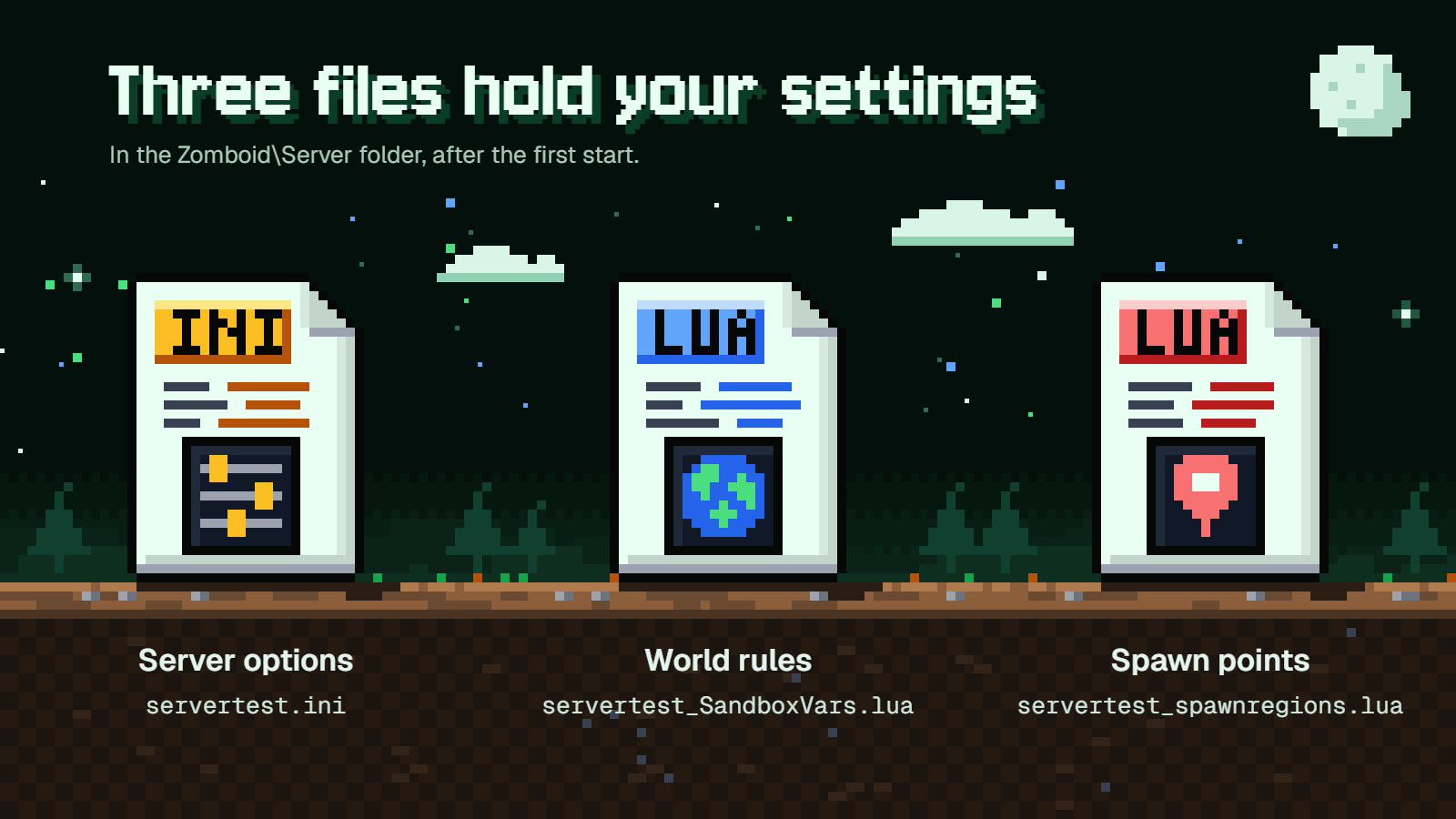
After the first start, a new folder appears at:
%UserProfile%\Zomboid\Server\
%UserProfile% is Windows shorthand for your own user folder. Paste that line into File Explorer's address bar and it takes you straight there.
Three files there matter:
servertest.iniholds the server options: name, password, player cap.servertest_SandboxVars.luaholds the world rules, the same kind of settings as a sandbox game.servertest_spawnregions.luaholds the spawn points.
These are the options in servertest.ini most groups touch:
PublicName=
PublicDescription=
Public=
Password=
MaxPlayers=
PVP=
Open=
PublicName= and PublicDescription= are what people see in the server browser, and Public=true puts the server in that browser. For a friends-only world, use Public=false and set Password=. PVP=true lets players hurt each other.
MaxPlayers= is the most players online at once, not counting admins. Version 42.20.3 added support for up to 254 players, with admins able to join a full server. The developer's earlier advice of no more than 20 slots dates from Unstable 42.13, when Build 42 multiplayer first arrived. What your PC and upload speed can handle is a separate question, so start with your real group size.
Open=false turns on the whitelist. Then only accounts an admin created can join:
/adduser "username" "password"
You don't have to edit these files by hand. In the game, go to main menu > Host > Manage settings and choose servertest to edit. A dedicated server on the same PC reads the same servertest files, so that screen edits your dedicated server's settings with menus and checkboxes, with no typos to worry about. Make your changes with the server shut down, then start it again.
Add Workshop mods
Every mod has two different IDs. The Workshop ID is the number at the end of the mod's Workshop page address. The mod ID is a name.
The method the developer's support uses on 42.20 keeps you out of the files:
- In the main menu, open Mods and enable the mods you want.
- Go to Host > Manage settings and add the same mods there, including in its Steam Workshop section.
- Save.
The settings screen writes the mod lines into servertest.ini itself. Afterwards, open the file and look at the WorkshopItems= line. If it's still empty, type the Workshop IDs in by hand, separated by semicolons:
WorkshopItems=1234567890;2345678901
Those two numbers are made up. Yours come from your mods' Workshop pages.
Add a few mods at a time rather than forty at once. If the server stops starting, you'll know which batch to look at.
Want new places to explore together? Our guide to Project Zomboid map mods for Build 42 lists five maps with the Workshop IDs you'd add here.
How friends join
Everyone goes to main menu > Join and fills in:
- IP: your public IP, for example
203.0.113.25 - Port:
16261 - Server password: whatever you set in
Password=, if anything - Account Username and Account Password: each player makes these up for your server
The Account Username and Password aren't Steam logins. Each player invents them the first time and has to use the same pair every time after. Clicking "Save" puts the server in their Favorites tab.
On the PC running the server, you don't use the public IP. You use the machine's local IP, like 192.168.1.50.
If you set Public=true, your server also shows up in Join > "Internet". The Build 42 browser can filter modded, full or empty servers and sort by ping or player count.
FAQ
Can I keep my Build 41 world?
Not on Build 42. Build 41 saves aren't compatible. To keep playing that world, switch both the game and the server to the legacy41 branch under Properties > "Game Versions & Betas", and have every player do the same.
How much RAM does a server for four players need?
4 GB, going by the official rule of 2 GB plus 500 MB per player. Set -Xmx4G in StartServer64.bat and remove the -Xms16g part. If you're also playing on that PC, remember the game needs its own memory on top.
Why can't my friends connect?
Go down this list:
- Both ports are open as UDP, not TCP, in Windows Firewall and on the router.
- Friends are typing your public IP with port 16261.
- The console window is still open and shows
*** SERVER STARTED ****. - Everyone is on the same game version as the server.
- With
Open=false, each friend has an account you created with/adduser.
If all of that checks out, your provider may not be giving you a public IP.
How do I update a SteamCMD server?
Shut the server down, run steamcmd.exe, and enter the same commands as the install: force_install_dir C:\PZServer, login anonymous, app_update 380870 validate, then quit. Your saves aren't touched. The official patch notes on Steam tell you when a new version is out.
Can I move my Host game to a dedicated server?
The map, yes. Characters, no, because Host and dedicated servers save them differently. Everyone will make a new character in the world you already built.