Your NAT type isn't a setting on the console. Your router or gateway decides it, so every real fix happens there.
On Xbox you're aiming for Open. On PlayStation, Type 2 is what a working connection behind a home router shows, and Type 3 is the one to fix. Either way, start with a restart and a UPnP refresh, well before you go near port forwarding.
What NAT is and why it's wrecking your lobby
NAT stands for Network Address Translation. It gives you one IP address for traffic inside your home and one for traffic outside it, hides the inside address, and works as a kind of firewall.
Say your console is 192.168.1.50 on your home network. The internet never sees that. It sees one address for the whole house, something like 203.0.113.25, shared by your console, your phone and the TV.
When your console starts a conversation, the router remembers who asked and passes the reply back. When a friend's console tries to reach yours out of nowhere, the router has to guess which device it's for, and a cautious router drops it. Party chat and a lot of multiplayer rely on consoles talking to each other directly, which is why you can't join, can't host, or sit in a silent party.
What each NAT type means on Xbox and PlayStation
Xbox: Open, Moderate, Strict, Unavailable
Open: you can play and host multiplayer games with people on any NAT type.Moderate: you might not be able to play with some people, and normally you won't be picked as host.Strict: you can only play with people who haveOpen, and you can't be chosen as host.Unavailable: you can't use party chat or connect to multiplayer in some Xbox titles.
For multiplayer and party chat, Open connects with all three. Moderate connects with Open and Moderate, but not Strict. Strict connects with Open only.
So two friends on Strict can't hear each other at all, and that's often what's behind party error 0x89231806, "Your network settings block the Party Chat." If you can't hear friends or can't join or host a game, Xbox's own reading is that your NAT type is Moderate or Strict.
PlayStation: Type 1, Type 2, Type 3
Sony's definitions come from the PS4 User's Guide, and they're simpler:
Type 1: connected directly to the internet.Type 2: connected to the internet with a router.Type 3: connected with a router, and communication with other PS4 systems might be impossible or network features limited.
If you have a router, which you almost certainly do, Type 2 is the normal, healthy result. Don't chase Type 1.
Is Moderate good enough?
If you can join your friends, hear them and get into matches, yes. Leave it alone. Moderate only becomes your problem when something stops working, and nothing below is worth an evening if your games already run fine.
Where to check your NAT type
On Xbox Series X|S and Xbox One, press the Xbox button to open the guide and go to Profile & system > Settings > General > Network settings. The NAT Type field sits under Current Network Status, and Test NAT type on the same screen re-runs the check. That screen is also where Double NAT detected and UPnP Not Successful show up, so note them if you see them.
| Platform | Labels you'll see | Where to test | Router restart wait |
|---|---|---|---|
| Xbox Series X|S, Xbox One | Open, Moderate, Strict, Unavailable |
Profile & system > Settings > General > Network settings > Test NAT type |
Unplug modem and router for 10 to 20 seconds |
| PS5 | Type 1, Type 2, Type 3 |
Settings > Network > Connection Status > Test Internet Connection |
Router and modem off for at least 5 minutes |
| PS4 | Type 1, Type 2, Type 3 |
Settings > Network > Test Internet Connection |
Router and modem off for at least 5 minutes |
| Windows 10 PC | NAT Type and Server connectivity |
Settings > Gaming > Xbox Networking |
Same router restart as Xbox |
Write down what you get. You'll re-test after every change, and you want to know whether anything moved.
Work out which of three setups you have
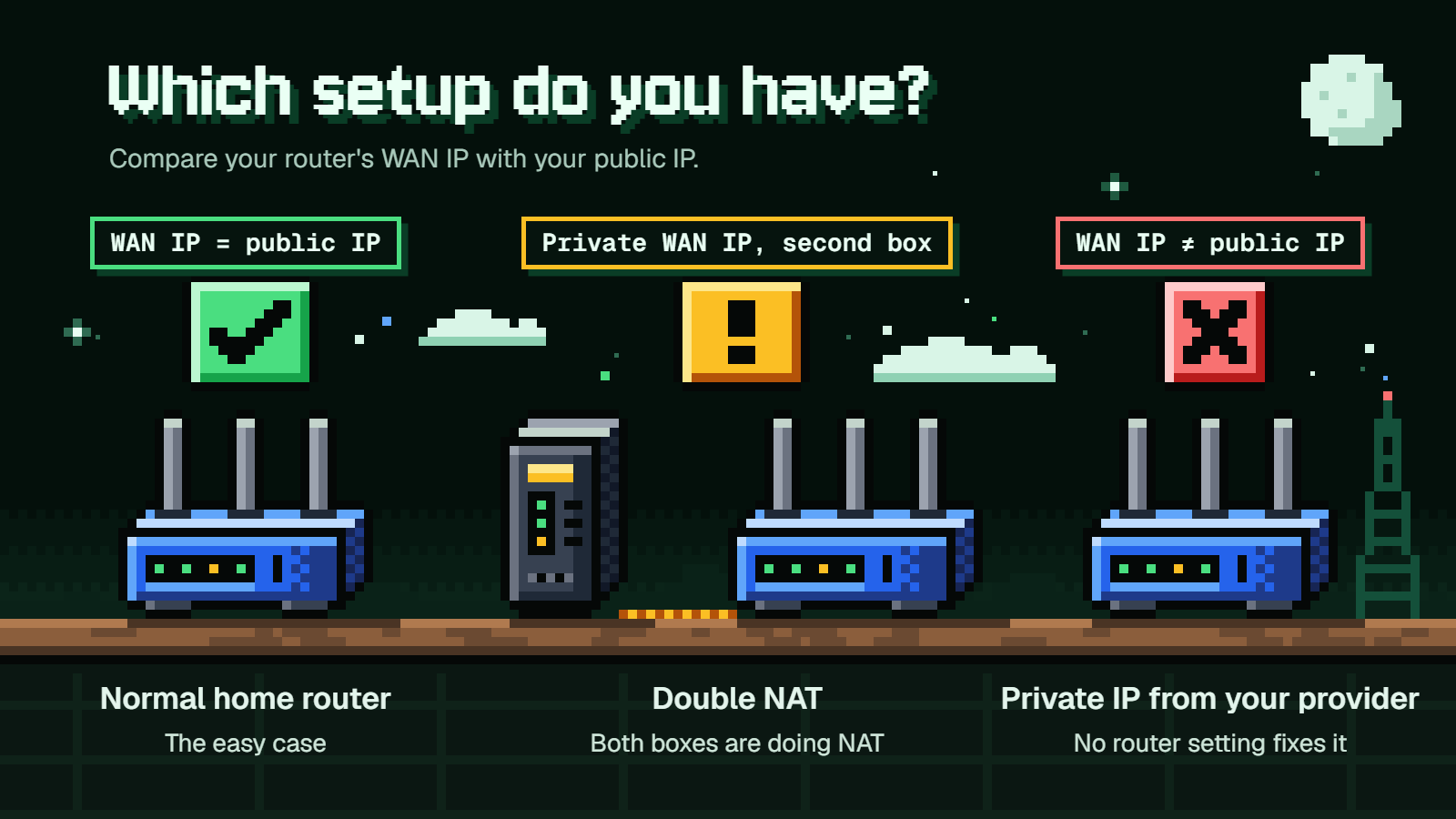
Before you forward a single port, spend two minutes finding out what kind of network you're on. It decides whether the usual fixes can work at all.
Log in to your router (on the big brands that's routerlogin.net for NETGEAR, tplinkwifi.net for TP-Link, asusrouter.com for ASUS) and find the WAN or internet IP address on its status page. Then, on a device on the same network, search "what is my IP" in a browser and compare the two.
- They match. You have a normal home router with a public address. This is the easy case, and the next section is for you.
- The router's WAN IP is a private address and there's a second box. If your own router plugs into a gateway from your provider (modem and router in one), both are doing NAT. Xbox flags this as
Double NAT detected. Skip to the double NAT section. - The box connected to the outside line has a WAN IP that differs from your public IP. Your provider is handing you a private address. No router setting fixes that one.
Private addresses are easy to spot. They fall in these ranges:
10.0.0.0 to 10.255.255.255
172.16.0.0 to 172.31.255.255
192.168.0.0 to 192.168.255.255
The fixes in order for a normal home router
Re-test after each step and stop as soon as you get the result you need.
-
Restart everything. On Xbox, restart the console from a full shutdown, and unplug the modem and router for 10 to 20 seconds. On PlayStation, restart the PS5, use a wired connection if you can, and turn the router and modem off for at least 5 minutes before powering them back on.
-
Refresh UPnP. UPnP is the router feature that lets a console ask for the ports it needs by itself. Xbox requests UDP 3074 by default this way. In the router, turn UPnP off and save. Restart the console from a full shutdown and power-cycle the modem and router. Turn UPnP back on, save, and restart the modem and router again. If your router has a
Zero Configsetting, turn that on too. -
Update the router's firmware. Both Xbox and PlayStation list this ahead of opening ports.
-
Give the console a fixed address, then forward ports. A forwarding rule points at one internal IP, so that IP can't be allowed to change. The tidy way is a DHCP reservation in the router: add the console's MAC address and pin it to something like 192.168.1.50.
If your router has no reservation feature, set it on the console. On Xbox:
Network settings>Advanced settings>IP settings>Manual, thenDNS Settings>Manual. On PS5:Settings>Network>Settings>Set Up Internet Connection, thenAdvanced Settingswhile setting up the connection.Then forward the ports to that address. For Xbox:
UDP 88
UDP and TCP 3074
UDP and TCP 53
TCP 80
UDP 500
UDP 3544
UDP 4500
Add UDP 9002 only if remote play won't connect and the console reports
Strict. Some games need extra ports, which the game's developer lists.For PlayStation, the ports on PlayStation's PS5 connection-error page are:
TCP: 80, 443, 3478, 3479, 3480
UDP: 3478, 3479, 49152-65535
Remote Play uses UDP 8572 and may not work on
Type 3. PlayStation also suggests calling your internet provider if you need help opening ports. -
DMZ, as a last resort. DMZ (Xbox calls it a "perimeter network") moves the console outside the router's firewall. It needs a static IP, and only one console can sit in it.
If none of that works, Xbox's final step is restoring the router to factory defaults by holding Reset for 10 to 30 seconds. You'll be setting up your Wi-Fi from scratch afterward.
Pick one method, not all three
Don't combine UPnP, port forwarding and DMZ. If you move on to forwarding, turn UPnP off. If you tried DMZ and it didn't help, turn it off before trying anything else.
Where the settings live
- NETGEAR:
ADVANCED>Advanced Setup>UPnP>Turn UPnP On(on by default). Forwarding isADVANCED>Advanced Setup>Port Forwarding/Port Triggering>Add Custom Service. DMZ isADVANCED>Setup>WAN Setup>Default DMZ Server. - TP-Link:
Advanced>NAT Forwarding>UPnP(on by default). Depending on the model, forwarding isForwarding>Virtual Servers,Advanced>NAT Forwarding>Virtual ServersorAdvanced>NAT Forwarding>Port Forwarding. DMZ isAdvanced>NAT Forwarding>DMZ>Enable DMZ. TP-Link's NAT forwarding chapter shows the screens. - ASUS:
Advanced Settings>WAN>Basic Config>Enable UPnP. Forwarding isWAN>Virtual Server/Port Forwarding>Enable Port Forwarding, which is off by default, and ASUS has a walkthrough for adding rules. DMZ isWAN>DMZ>Enable DMZ.
The trade-offs
Neither UPnP nor DMZ is free. NETGEAR warns that malware can use UPnP to compromise the network, and recommends manual port forwarding instead. If that bothers you, treat UPnP as the quick test and forwarding as the long-term setup.
DMZ is the bigger risk. NETGEAR says the DMZ device "loses much of the protection of the firewall and is exposed to exploits from the internet," and TP-Link says to disable it when it isn't in use. For a console you only play on, some people accept that. Never do it with a PC.
Not every setup can reach Open, and forwarding only works if the router has a public WAN IP. That brings us to the two cases these steps can't solve.
Fixing double NAT
Double NAT detected means two devices are both translating addresses, usually a provider gateway plus the router you bought yourself. Your forwarding rules on the second router go nowhere, because the first one is still blocking the way.
Try these in order:
- Put the gateway into bridge mode, so it acts as a plain modem and your own router does all the work.
- If you can't, set your own router to access point mode, so the gateway handles NAT and your router just provides Wi-Fi.
- Connect the console straight to the gateway or modem.
- If it's still there, contact your internet provider.
Sony's advice is the same idea in fewer words: "If you are using multiple NAT routers, please remove them." If you'd like a plain explanation of why two routers clash, Google's double NAT help page is a good one.
Once only one box is doing NAT, go back and run the normal fixes on that box.
When your provider gives you a private IP
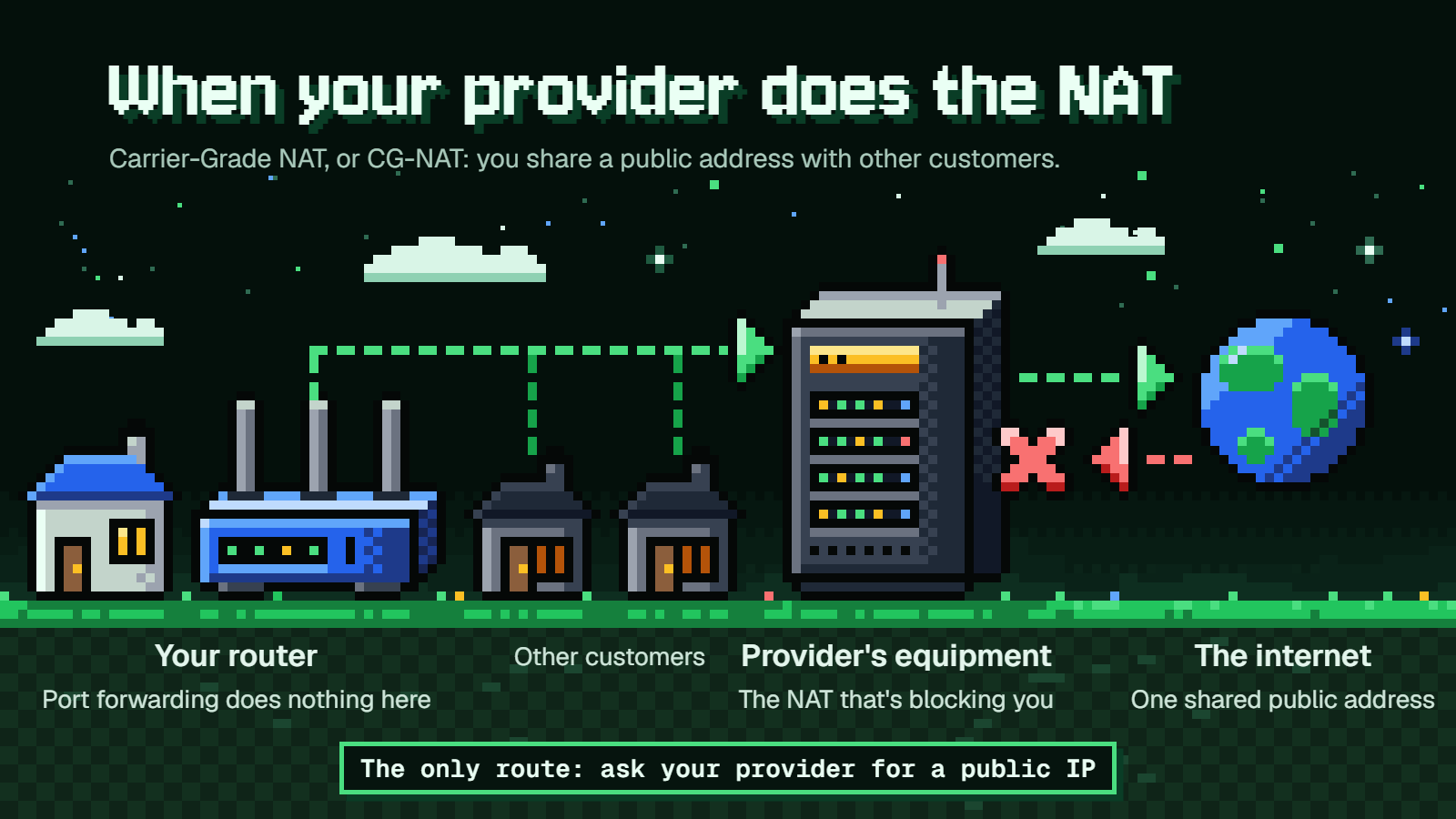
If the box facing the internet has a WAN IP that differs from your public IP, your provider is using Carrier-Grade NAT, or CG-NAT. You're sharing a public address with other customers, and the NAT that's blocking you sits on the provider's equipment, not yours.
Port forwarding does nothing here. You can set up perfect rules on your router and the traffic still never reaches it, and Open isn't possible in that setup.
The only route is to ask your provider for a public IP. Xbox is blunt about what happens if they can't give you one: "you'll have to change ISPs."
NAT type on a Windows PC
On PC, the NAT type shown in Xbox Networking is about Teredo, and Teredo is needed only for multiplayer in select Xbox network games (Forza Horizon 3 and 4 are the named ones). For any other PC game with connection trouble, the game's own support site is where to look.
On Windows 10, open Settings > Gaming > Xbox Networking. If you see Teredo is unable to qualify next to NAT type, the PC can't get a Teredo IP address. Server connectivity: Blocked means there's no Teredo IPsec connection. The Fix it button on that page is Windows 10 only.
On Windows 11, the step is Settings > Network & internet > Advanced network settings > Network reset > Reset now. That removes your network adapters, reinstalls them with default settings and restarts the PC, so you may have to set up VPN software again afterward.
To see Teredo's state on either version, open Command Prompt as administrator and run:
netsh interface Teredo show state
Three things commonly break it. Teredo needs Windows Defender Firewall turned on, it needs the IP Helper service set to Automatic, and a VPN client can block it.
If a game needs to be let through the firewall, go to Windows Security > Firewall & network protection > Allow an app through firewall. You can open a port instead under Advanced settings > Inbound Rules > New Rule..., but Microsoft considers allowing an app less risky, because a port stays open until you close it.
If you do forward ports to a PC on the router, pin the PC's address first. Run ipconfig /all to see its current IPv4 address, subnet mask, default gateway and DNS servers. Then go to Settings > Network & internet > Wi-Fi > Manage known networks > your network (or Ethernet), select Edit next to IP assignment, choose Manual and turn on IPv4.
Adding a second console in the same house
Two Xbox consoles both asking for port 3074 is a common reason one gets Open and the other doesn't. On the second console, go to Network settings > Advanced settings > Alternate port selection > Manual and pick a different port. If you're forwarding manually, forward that chosen port to the second console instead of 3074.
DMZ won't help here, since only one console can be in it. And not all routers can give several consoles Open at once. If both consoles can play and chat on Moderate, that may be as good as that router gets.
FAQ
Is Moderate NAT good enough, or do I need Open?
If you can join, host when you want to and hear everyone, Moderate is fine. It becomes a problem when a friend is on Strict, since Moderate and Strict don't connect, or when you keep failing to host. Fix it then.
Is it safe to put my console in the DMZ?
It's a trade-off. The console loses much of the firewall's protection and is exposed to the internet. If you use it, keep it to a console, turn it off when you don't need it, and never put a PC there.
Do I need a static IP before port forwarding?
Yes. A forwarding rule points at one internal address, and if the router hands your console a different one next week, the rule points at nothing. A DHCP reservation in the router is the easiest way to lock it.
Why did forwarding ports change nothing?
The usual causes are a second device doing NAT in front of your router, a provider giving you a private IP, the console's address having changed since you made the rule, or UPnP or DMZ still being on alongside the forwards. Check the router's WAN IP against your public IP first.
Why does my Xbox say NAT Type: Unavailable?
That, or Can't get a Teredo IP address, points at Teredo being blocked. Update the router, restart the router and console, and turn on the router's Allow Teredo tunneling or Allow IPv6 tunneling setting. If it stays, turn the router's Enable IPv6 setting off and reboot it.