
If you just saw a number in the 60s, 70s or low 80s in the middle of a game, that's inside the typical range. Nvidia says graphics card temperatures typically range from 40°C to 90°C, and that performance-class cards can reach high temperatures under heavy load.
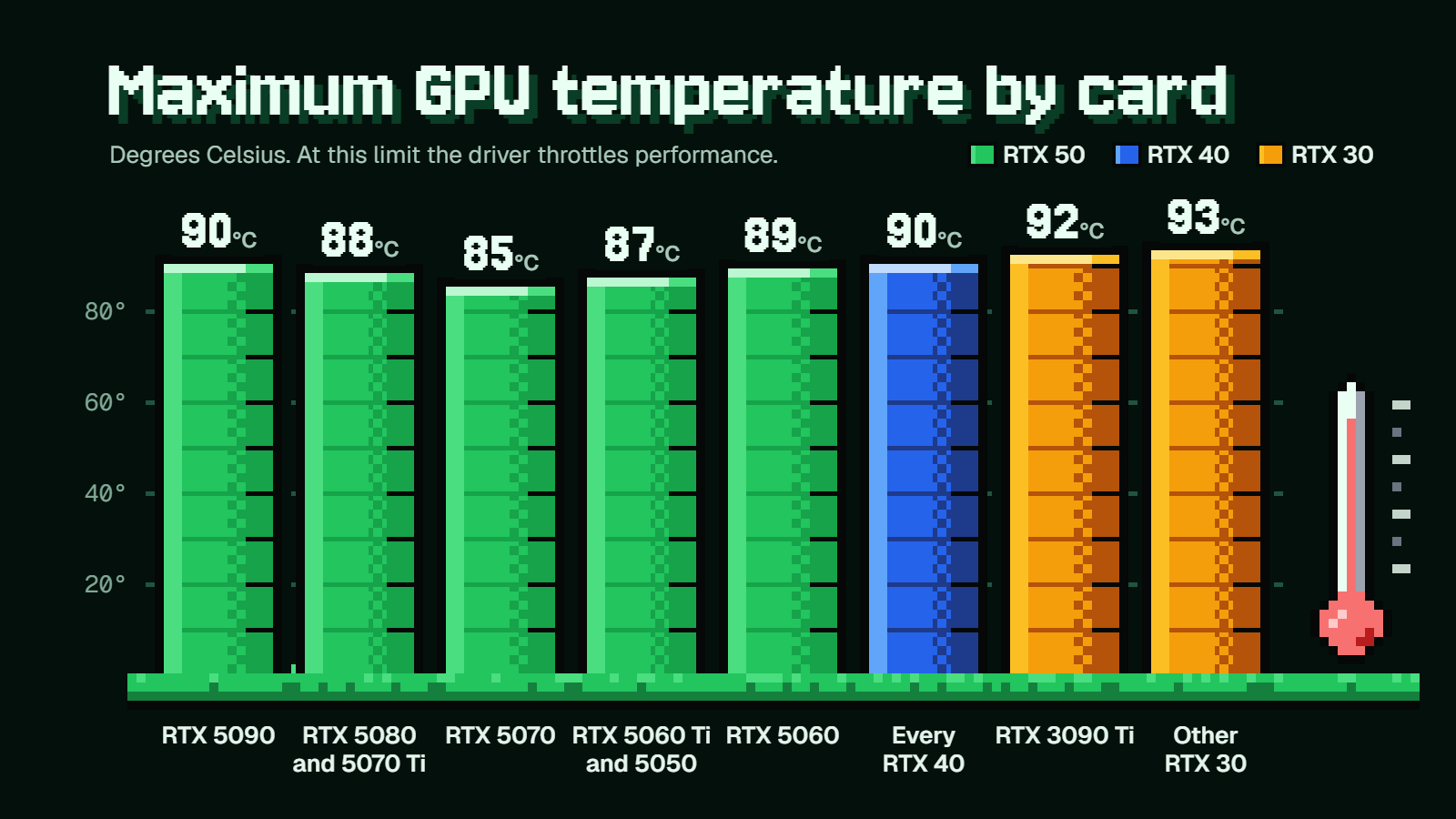
What settles it for an Nvidia owner is the card's own published maximum. That runs from 85 to 93 across the RTX 50, 40 and 30 series, so the same reading can be comfortable on one card and right at the ceiling on another.
What's a normal GPU temp while gaming?
Nvidia's exact line is: "Graphics card temperatures typically range from 40°C to 90°C." That's a wide band, and it's meant to be. It covers everything from a card sitting at the Windows desktop to one rendering a demanding game at full load.
Don't be alarmed if the fans aren't spinning when you're just browsing. On Radeon cards that have it, a feature called "Zero RPM" is enabled by default. It keeps the fans quiet under light load and only spins them up as GPU load and temperature rise. A silent card at the desktop is doing what it was set up to do.
The trouble with the 40 to 90 line is its age. Nvidia last updated it on 09/29/2021, before the RTX 40 and 50 series existed, and the limits on newer cards have moved since then.
Say your overlay reads 85°C. On an RTX 5070, that's the card's listed maximum. On an RTX 3080, the limit is 93, so you've still got 8 degrees of room. The reading is the same, but only one of those cards is at its ceiling, which is why your own card's limit tells you more than any general range.
Each RTX 50, 40 and 30 card's maximum temperature
Nvidia lists a limit for every desktop card in these three series. It sits under "Thermal and Power Specs" as "Maximum GPU Temperature (in C)", and you can pull it up for your model on Nvidia's graphics card comparison page.
| Series | Card | Maximum GPU Temperature (°C) |
|---|---|---|
| RTX 50 | RTX 5090 | 90 |
| RTX 50 | RTX 5080, RTX 5070 Ti | 88 |
| RTX 50 | RTX 5070 | 85 |
| RTX 50 | RTX 5060 Ti, RTX 5050 | 87 |
| RTX 50 | RTX 5060 | 89 |
| RTX 40 | RTX 4090, 4080 SUPER, 4080, 4070 Ti SUPER, 4070 Ti, 4070 SUPER, 4070, 4060 Ti, 4060 | 90 |
| RTX 30 | RTX 3090 Ti | 92 |
| RTX 30 | RTX 3090, 3080 Ti, 3080, 3070 Ti, 3070, 3060 Ti, 3060, 3050 (8 GB), 3050 (6 GB) | 93 |
These figures are for Nvidia's Founders Edition or reference design, and Nvidia notes that specifications may vary by add-in-card manufacturer. If your card comes from a board partner with its own cooler, treat the number as the baseline for your chip.
The ceilings have come down since the RTX 30 series. RTX 50 cards top out between 85 and 90, while RTX 30 cards sit at 92 to 93. If you moved from an RTX 3070 to an RTX 5070, the temperatures you used to shrug off now deserve a second look.
Is 80, 85 or 90 too hot?
It depends on which row of the table you're in.
- 80°C is under every limit listed. The closest call is the RTX 5070, with 5 degrees to spare.
- 85°C is the RTX 5070's maximum. On every other card in the table it's below the limit, by 2 to 5 degrees on the rest of the RTX 50 series and by 7 or 8 on the RTX 30 series.
- 90°C is the maximum for the RTX 5090 and every RTX 40 card. It's past the listed limit for the other RTX 50 cards, and still 2 to 3 degrees under on the RTX 30 series.
Older cards and laptops
If you're on something older, the RTX 20 series sits at 88 to 89, and the GTX 16 series ranges from 90 to 95 depending on the model.
Laptop owners don't get a figure. Nvidia's laptop GPU tables for the RTX 50 and 40 series list "GPU Subsystem Power (W)" and have no maximum temperature row, so the desktop numbers above aren't published for your chip.
What happens when your card reaches its limit
Nvidia says its GPUs "are designed to operate reliably up to their maximum specified operating temperature." The limit is a safeguard built into how the card runs.
When the GPU hits its maximum, the driver throttles performance to pull the temperature back under it. For you, that shows up as lost frames. A game that was running smoothly starts dipping or stuttering, often after you've been playing long enough for heat to build up in the case.
If the temperature keeps rising despite the throttling, the GPU shuts the system down to prevent damage to the card. That's the last resort, and it means the cooling has a real problem, like a dead fan or a case with no air moving through it.
So a card that touches its maximum is costing you performance. It isn't on the verge of dying, but it's a good reason to work through the fixes further down.
That all applies to Nvidia, which is the only one of the three makers that puts a number on its spec pages.
What AMD and Intel publish instead
AMD
AMD's spec lists for the RX 9070 XT, RX 9070, RX 9060 XT, RX 7900 XTX, RX 7800 XT, RX 7600, RX 6800 XT, RX 6700 XT and RX 6600 give "Typical Board Power (Desktop)" and "Minimum PSU Recommendation". There's no temperature limit on any of them.
AMD's software also shows two temperatures, which can be confusing. AMD Software: Adrenalin Edition reports "GPU Current Temperature" and "GPU Junction Temperature". The tuning screen also lists "GPU Hotspot Temperature", which is available on Radeon VII, RX 5000 Series and newer cards.
If you see two different numbers for the same card, those are the two readings, and AMD's software reports both.
Intel
Intel's spec pages for the Arc B580, B570, A770 (16GB) and A750 list TBP, which is 190 W, 150 W, 225 W and 225 W in that order. There's no temperature limit here either.
The closest thing to a marker is Intel's overheating help for Arc cards. It describes the problem as GPU and VRAM temperatures "observed over 90 Celsius" when gaming. That help covers the A380, A580, A750, A770, B570 and B580, among others. It isn't a published ceiling, but an Arc card sitting above 90 while you play matches what Intel itself calls overheating.
How to check your GPU temperature
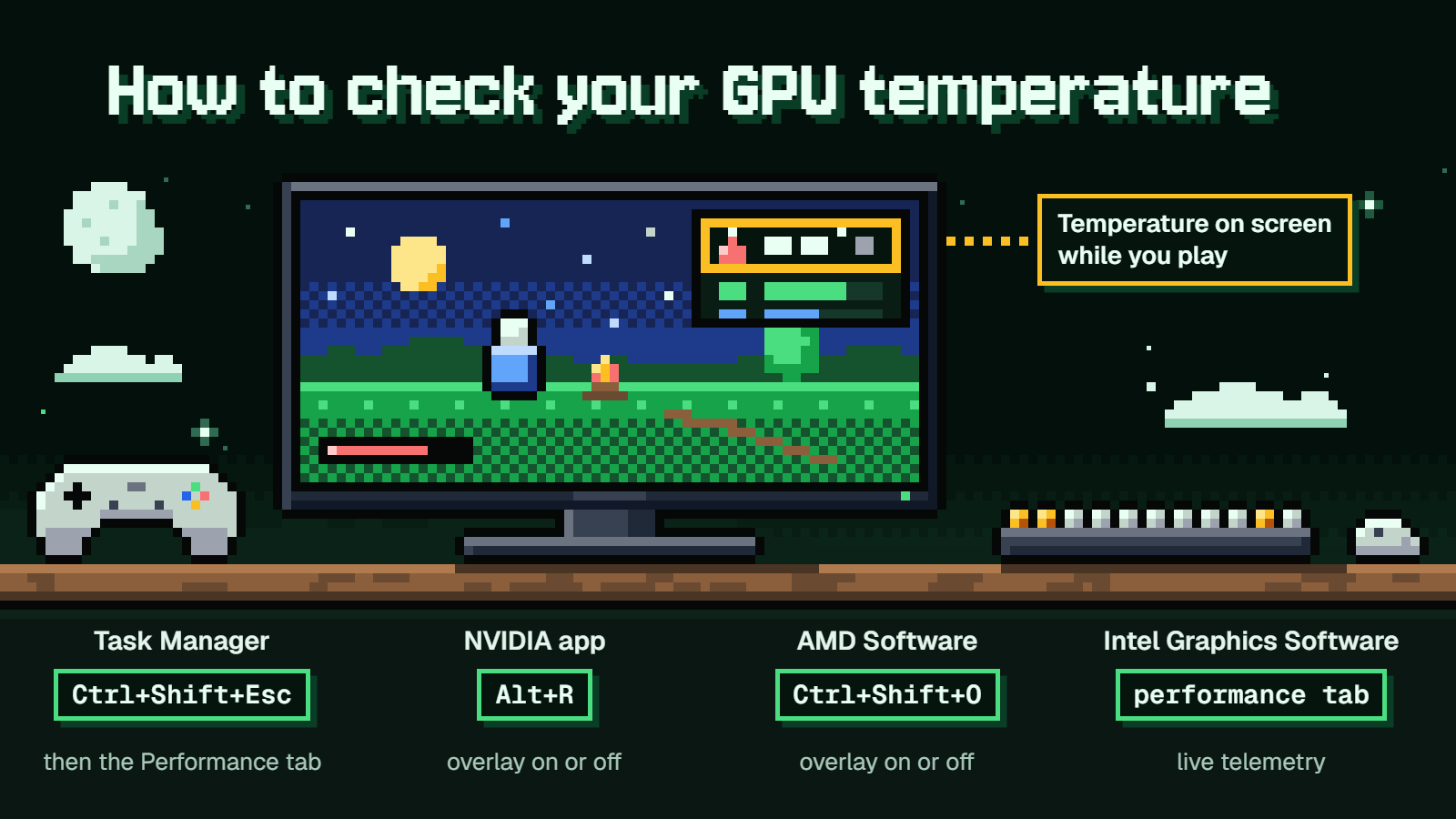
You've got two routes: Task Manager, which is already on your PC, or your card maker's own software, which can show the number on screen while you play.
Task Manager
This has been built into Windows since Windows 10, version 2004, and Microsoft first showed it off in an Insider preview build.
- Press
Ctrl+Shift+Escto open Task Manager. - Click the Performance tab.
- Find your GPU in the list. The temperature is shown next to the GPU's listing.
It only works for a dedicated GPU card, and the graphics driver has to support WDDM 2.4 or higher. If there's no temperature showing, check the driver model:
- Press
Win+R. - Type
dxdiagand press Enter. - Open the Display tab and read the "Driver Model" line.
Microsoft's notes for that preview build say the value is supported in Celsius only, which is handy since every limit in the table above is in Celsius too.
The catch with Task Manager is that you have to tab out of your game to read it. For a live number while you play, use an overlay.
NVIDIA app
The NVIDIA app needs Windows 10 or 11 and GeForce 551.52 Driver or later. If you're still looking for GeForce Experience, its page now redirects to the NVIDIA app, which took over the performance overlay and its customizable stats.
- Press
Alt+Zto open the NVIDIA Overlay. - Click "Statistics" at the bottom of the sidebar.
- Under Statistics View, pick "Custom" to choose what's shown, and make sure temperature is included.
- In your game, press
Alt+Rto toggle the overlay on or off.
AMD Software: Adrenalin Edition
You need the full installation of AMD Software for this. AMD's steps are written for Adrenalin Edition 23.9.1.
- Open AMD Software and type "Metrics" in the search box.
- Click the "Performance Metrics" result.
- Go to the Overlay tab and turn on "Show Metrics Overlay". It appears at Top Right by default.
- In-game, press
Ctrl+Shift+Oto toggle the overlay.
Intel Graphics Software
Intel Graphics Software comes with Intel Graphics Driver 32.0.101.6325 or later, and needs Windows 10 or 11 at version 22H2 or higher.
- Open Intel Graphics Software.
- Go to the performance tab.
- Read the temperature in the live telemetry.
A Performance Overlay for in-game readings is available from version 26.18.2353.2.
Arc Control, the older app, is End Of Life. If you're still on it, Alt+I opens it, and the Performance tab has the telemetry overlay switch.
What to do when your GPU runs hot
Start with the free stuff. Most of it takes a few minutes and a screwdriver.
Clear out the dust
Nvidia says graphics card fans collect dust over time, which reduces their ability to cool the GPU, and calls it good practice to occasionally check and gently clean your PC's components. AMD's advice is to clear dust and tidy loose cables to improve airflow. If your card is a few years old and the fans have gotten louder, start here.
Fix the airflow
A case without proper airflow can trap heat around the card. Nvidia suggests case fans that pull cool air in at the front and push hot air out the back.
Intel adds a rule that's easy to break without noticing: never set every fan as intake or every fan as exhaust. Its ideal layout is top-exhaust, bottom-intake, front-intake, rear-exhaust, and it says to check your case's manual, since the recommended directions depend on the case design. If you built your PC and aren't sure which way each fan faces, it's worth opening the side panel to look.
AMD also says to check that the system sits in an open, ventilated area. A tower pushed into a closed desk cubby keeps pulling in its own warm exhaust.
Update drivers and undo overclocks
AMD says to install the latest graphics driver and restore default settings if the card has been overclocked. AMD lists unstable overclocking and overheating together among the causes of random reboots, crashes and hangs, so if you've pushed your card and it's now crashing hot, go back to stock first.
Adjust the fan settings
Each maker's software gives you some control.
AMD: type "Tuning" in the AMD Software search box and open "Performance Tuning". Under "Manual Tuning", pick "Custom" (AMD shows a license text to accept first), then turn on "Fan Tuning". It has the "Zero RPM" option and a "Max Fan Speed (%)" slider. Turn on "Advanced Control" to set your own fan curve.
Nvidia: the NVIDIA app's System tab has a Performance tab where you can adjust fan speed and temperature targets.
Intel: Arc Control's Performance tab has a "Configure" button with "GPU Temperature Limit", which sets a maximum temperature the GPU should not exceed. It's on desktop Arc cards only.
A faster fan curve means more noise, so it's a trade. If you play with a headset on, it's usually an easy one to make.
Check for the Arc fan fault
This one's specific to Intel. On Arc cards with OPROM version 20.1053.1, the fan could stick at around 1200 RPM while the temperature rose rapidly. Driver 31.0.101.4644 includes a firmware update that fixes it, so if you have an Arc card running hot with a fan that never seems to speed up, update the driver.
Give the card less to do
AMD says limiting the frame rate saves power and also reduces heat and noise. If your game is running far above your monitor's refresh rate, a frame cap in the game's settings costs nothing and takes some load off the card. How much it helps depends on the game and your setup, but it's free to try.
FAQ
Is 85°C too hot for a GPU?
It depends on the card. On an RTX 5070, 85 is the listed maximum, so you're at the point where throttling kicks in. On an RTX 4070 the limit is 90, and on an RTX 3080 it's 93, so 85 is under the limit on both.
Will my GPU get damaged if it hits its maximum temperature?
Nvidia says its GPUs are designed to operate reliably up to their maximum specified operating temperature. At the maximum, the driver throttles performance to bring the temperature down, and if it keeps climbing anyway, the GPU shuts the system down to prevent damage to the card. What you'll notice is dropped frames, and that's your cue to look at the cooling.
Why doesn't Task Manager show my GPU temperature?
There are three usual reasons. The reading is only supported for a dedicated GPU card, you need Windows 10 version 2004 or newer, and the graphics driver has to support WDDM 2.4 or higher. Run dxdiag, open the Display tab and check "Driver Model" to see which version you're on.
Why does AMD Software show two GPU temperatures?
It reports "GPU Current Temperature" and "GPU Junction Temperature". They are two separate readings. The tuning screen also lists "GPU Hotspot Temperature", which shows up on Radeon VII, RX 5000 Series and newer cards.
Do laptop GPUs have a published maximum temperature?
Not from Nvidia. Its laptop GPU tables for the RTX 50 and 40 series list "GPU Subsystem Power (W)" and have no maximum temperature row, so the desktop figures don't carry over to laptop chips.