No, you can't run a Palworld dedicated server on an Xbox or PS5. The server runs on 64-bit Windows or Linux, either on someone's own machine or on a rented service. Your console can only join as a player, and only if the server is set up as a community server. That's still how it works as of patch v1.0.5 (September 14, 2026).
That leaves three options. Join a community server if one already exists, get a friend to host if they have a suitable PC, or rent a server if nobody does.
Why a Palworld Dedicated Server Can't Run on Xbox or PS5
The server can be set up four ways: Windows with the Steam client, Windows with SteamCMD, Linux with SteamCMD, or the official Docker image. None of those is for a console, so there's no menu option you've missed on your Xbox or PS5.
The confusion comes from some official wording. The June 2024 Xbox preview announcement said "Create your own server", and the v0.6.0 patch notes in June 2025 listed "PS5 Dedicated Servers!". Neither means the console runs the server. The 2024 setup used the same dedicated server software, which needs Windows or Linux.
Rental pages can give the same impression. G-Portal sells "[Xbox]" and "[PS5]" Palworld servers, but those are rented servers living in a data center, with no server software on your console.
Whether you join a stranger's world, use a friend's PC or rent, the server has to be the right type before your console can get in.
Dedicated Server vs Community Server
A community server is a dedicated server that's registered on the server list inside the game. Being on that list is the only difference between the two, but it decides everything for you. To join from Xbox or PS5, the server must be a community server.
A plain dedicated server is joined with an IP address and port number. Your friend might be happily playing on one from Steam while you can't get in from your console, even with crossplay switched on. Crossplay is on by default, but that alone doesn't make a server reachable from a console.
How to Find and Join a Community Server
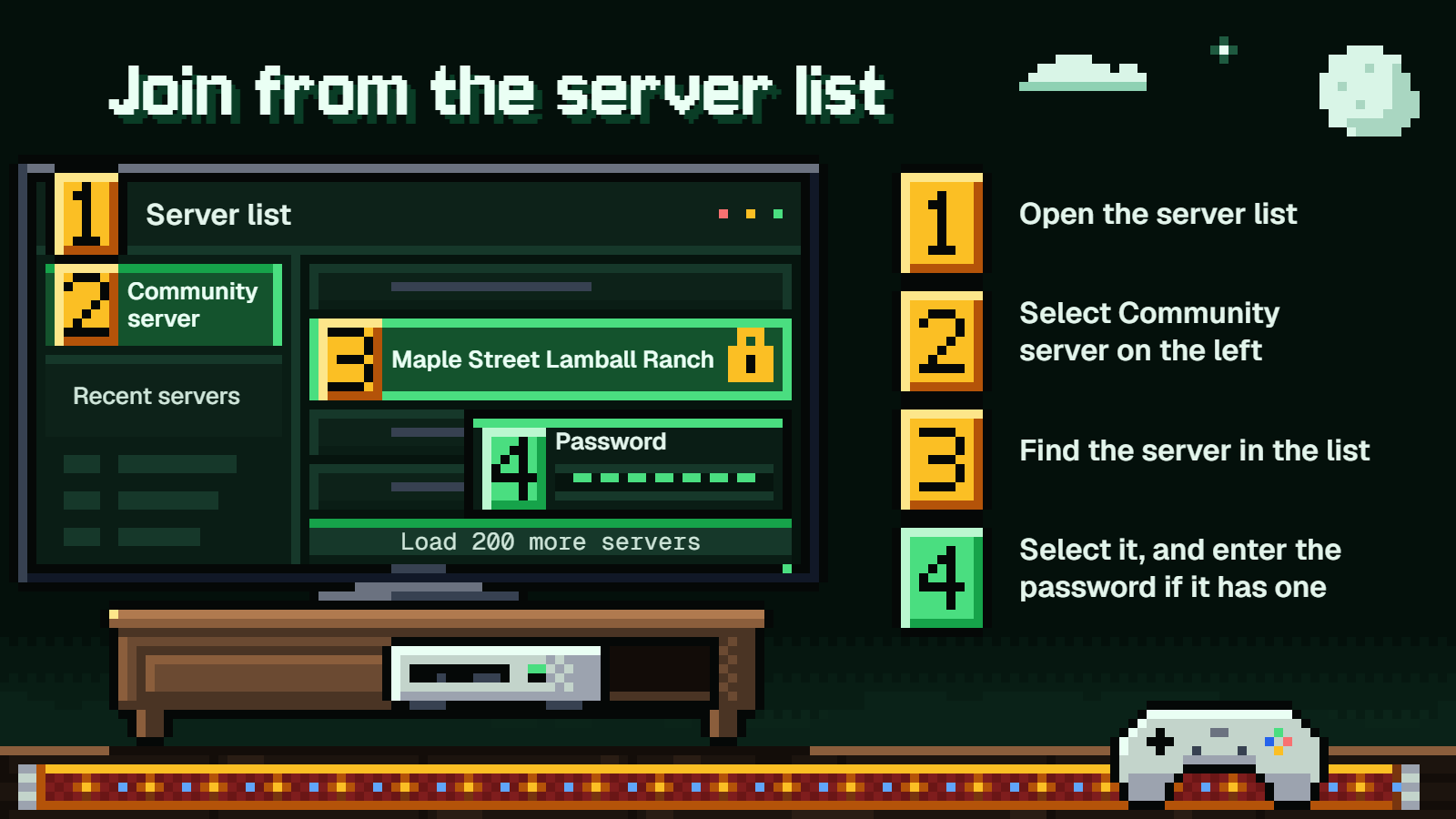
Once a server is listed, joining is simple:
- Open the server list in Palworld.
- Select Community server on the left.
- Find the server in the list.
- Select it, and enter the password if it has one.
G-Portal servers show up in this same list, but finding yours can take several clicks on Load 200 more servers. After you've joined once, it appears under Recent servers, so you won't have to scroll for it again.
If you or a friend control the server, give it a distinctive name. "Friday Night Pals" gets lost in a long list, while "Maple Street Lamball Ranch" is much easier to spot.
Which Subscription You Need to Play Online
On PS5, you need PS Plus for online play.
On Xbox, Game Pass Essential, Premium and Ultimate all include online console multiplayer. PC Game Pass doesn't, so it won't cover you on the console.
The game itself is a separate question. Palworld is included in Premium, PC Game Pass and Ultimate, but it isn't listed under Essential. If you're on Essential, plan on owning the game. Premium or Ultimate covers both the game and online play on your console.
What to Ask the Person Running the Server
Get these two things from the host:
- The exact server name
- The password, if there is one
Then ask them to confirm these four points:
- It's listed as a community server. On the Steam client, that means choosing
Open and start as a community serverwhen starting it. With SteamCMD, the host adds-publiclobbyat startup, and the community server setup guide covers the details. - Your platform is still allowed.
CrossplayPlatformsshould includeXboxorPS5. - The port is forwarded. The default is UDP port 8211, though the host can choose another one.
- The server is on the same build as your console. If it isn't, you may not be able to get in.
The SteamCMD startup commands look like this:
PalServer.exe -publiclobby
./PalServer.sh -publiclobby
The first is for Windows and the second is for Linux. The default crossplay setting, which lets every platform in, looks like this:
CrossplayPlatforms=(Steam,Xbox,PS5,Mac)
The upside for your host is that a dedicated server runs without the game client, so they don't need to keep Palworld open. The world stays up for as long as the server does.
No PC in the Group? Renting a Server
If nobody has a PC to host on, renting is the way to go. G-Portal has separate Xbox and PS5 pages, and its Palworld servers run from 8 to 32 slots. The 30-day and 90-day prices below are for the Central Europe location, and both console pages show the same figures.
| G-Portal option | Price |
|---|---|
| Console page, 3 days (starting price) | $6.14 |
| Console page, 10 slots, 30 days | $15.35 |
| Console page, 10 slots, 90 days | $41.44 |
| Console page, 32 slots, 30 days | $31.37 |
| Main Palworld page, 3 days (starting price) | $4.93 |
For a group of friends, I'd go with 10 slots. Split between five people, $15.35 comes to about $3.07 each for the month. The 90-day plan saves you about $4.61 over three separate months, so it only makes sense once everyone's sure they'll stick around. Unless your group is big, 32 slots is hard to justify.
The main page costs $1.21 less to start, and G-Portal says crossplay on its private servers works for PC, Mac, PlayStation and Xbox. I'd still buy from the page for your console, because it's the one set up for your platform. A 3-day rental is also a cheap way to confirm everyone can connect before you commit to a month.
How Xbox billing works
G-Portal's Xbox servers are sold through Microsoft, and that changes a few things:
- You cancel under subscriptions in your Microsoft account, not on G-Portal's website as you would for a PS5 server, and the server ends when the rented time runs out.
- Refund requests go to Microsoft Support, because G-Portal has no say over those contracts or refunds.
- G-Portal advises downloading your world over FTP before an Xbox server expires, so do that before the last day.
The Microsoft Store also lists a GPORTAL Game Servers app for renting and managing Xbox servers. Pick one person to hold the rental and manage it, since the subscription sits on their account.
Other hosts
Host Havoc lists Palworld crossplay for Steam, Mac, Xbox and PS5, and DatHost lists Xbox, PC, PS5 and Mac, so both are worth a look. Skip Hostinger for a console-only group, because its Palworld page says dedicated servers are only available for the Steam version.
What Crossplay Won't Do
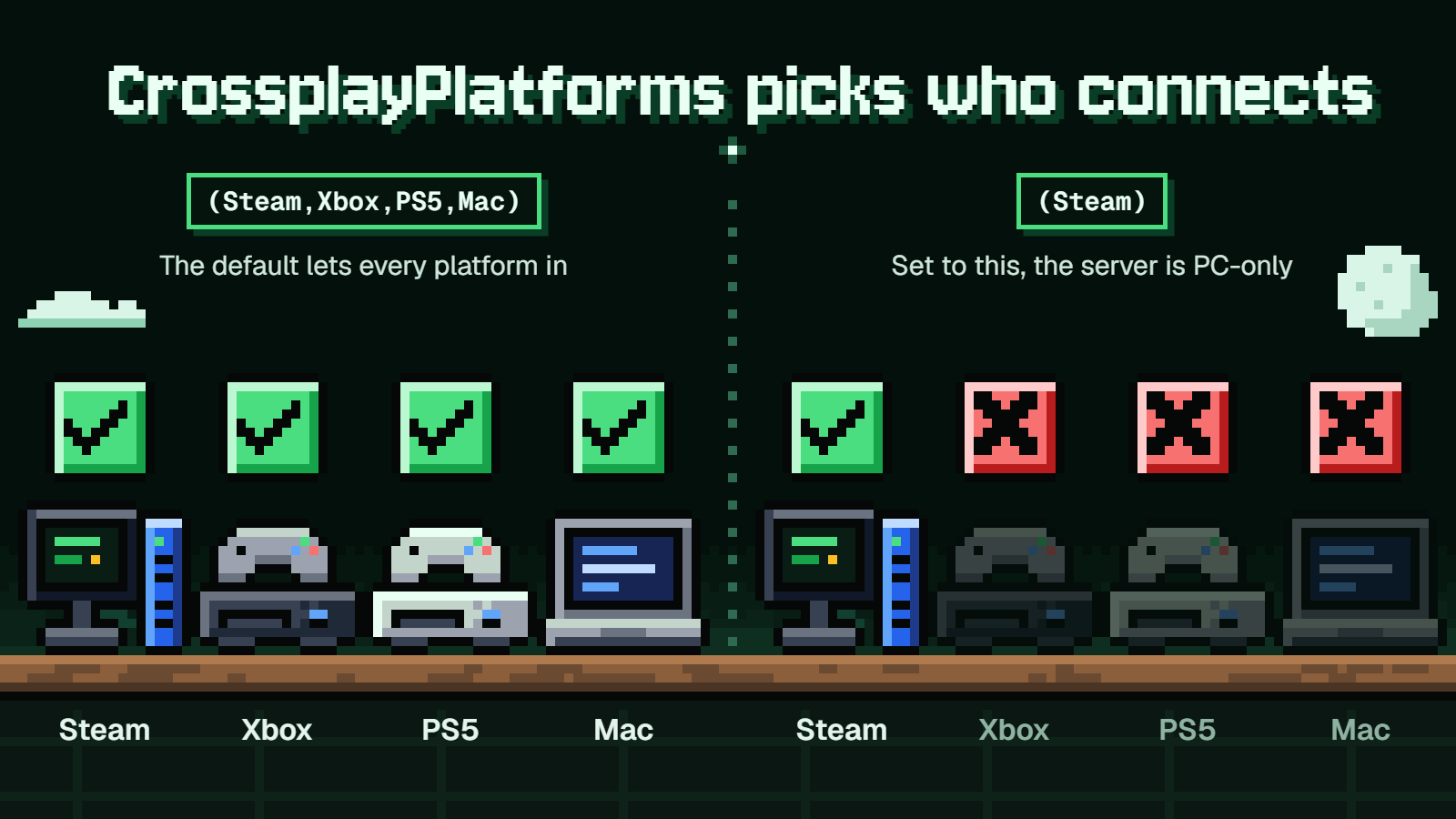
Dedicated and community servers have crossplay on by default for the Steam, Xbox series, Microsoft Store Windows PC, macOS and PS5 versions. It still has some limits:
- Hosts can shut out a platform.
CrossplayPlatformscontrols who can connect, and setting it to(Steam)makes a server PC-only. - Discord invites are limited. Linking a Discord account to invite friends only works on the Steam and Mac versions.
- Voice chat depends on the server. Voice chat arrived in 1.0, but it only works if
bEnableVoiceChatis enabled in the server's world settings. The 1.0 changelog also says it isn't supported on WinGDK. - Admin commands don't suit console players.
/KickPlayerand/BanPlayertake a Steam ID, which doesn't identify someone on console. Admins remove console players through the in-game player list or their UID.
Be wary of older guides. Crossplay arrived in v0.5.0 on March 19, 2025, so anything saying it doesn't exist is out of date. The same goes for instructions that use AllowConnectPlatform, since CrossplayPlatforms has replaced it.
Why Your Console Can't See or Join the Server
Work through these in order, because the first few are the most likely culprits:
- The server isn't registered as a community server. If it's not on the list, your console has no way in.
- Your platform is missing from
CrossplayPlatforms. If the host just changed the setting, the server needs a restart for it to take effect. - The server is on a different build. Some patches are PC-only and cause no trouble. v1.0.2.100993 was stated not to affect crossplay, while v0.5.2 had to be applied to all versions. After any update, compare versions with your host.
- The password is wrong. Get the host to resend it exactly as it's set.
- The port isn't forwarded. The host should check UDP port 8211, or whichever port they chose, on their router.
- The public IP wasn't detected. This normally happens automatically. If it fails, the host can set it at startup, or use
PublicIPandPublicPortin the config. Neither option changes the port the server listens on. - Your console is on the same home network as the server. Without Hairpin NAT support on the router, it can't connect.
For number 6, the startup arguments look like this, with a made-up address:
-publicip=203.0.113.25 -publicport=8211
When the server is in your own house
Number 7 is easy to miss because everything else looks fine. Say the server PC is in your bedroom at 192.168.1.20, and your Xbox is in the living room on the same router. Your friends across town can join, but your Xbox can't.
That doesn't mean the server's broken. If your router doesn't support Hairpin NAT, a device on the same network can't connect to a community server hosted there. You'd need a router that supports it, or a server outside your home, such as a rental.
FAQ
Do I need Game Pass or PS Plus to join?
Yes. PS5 players need PS Plus. Xbox players need Game Pass Essential, Premium or Ultimate.
Can I connect by IP on console?
Don't plan around it. IP and port is the route for a plain dedicated server, and your console needs a community server, so ask the host to get it on the list.
Can Steam, Xbox and PS5 players share one server?
Yes, as long as it's a community server and the host hasn't removed a platform from CrossplayPlatforms.
Does a password stop console players from joining?
Not if you have the right one. A password-protected community server only turns you away if you enter the wrong password.
Can more than four console players be on one server?
Yes. Co-op holds up to 4 players, while a dedicated server holds up to 32. The PlayStation Store's 4-player figure isn't the server limit.